> ## Documentation Index
> Fetch the complete documentation index at: https://docs.laozhang.ai/llms.txt
> Use this file to discover all available pages before exploring further.
# Nano Banana Pro 图改图
> Nano Banana Pro 图改图 API:基于 Gemini 3 Pro 的专业图像编辑。0.09 美元/次,支持 4K 输出、复杂指令、多图融合(最多 14 张)。
**🧠 智能编辑新高度**
Nano Banana Pro Edit 使用 Google **Gemini 3 Pro** 模型,具备极强的语义理解能力。它不仅是"修改图片",而是"理解并重绘图片"。
创建 API Key,查看余额和调用日志
影图 AI 即刻体验,无需写代码
## 前置要求
登录 [laozhang.ai 控制台](https://api.laozhang.ai) 获取 API 密钥
编辑令牌设置,选择以下任一计费模式(两者价格相同):
* **按量优先**(推荐):优先使用余额计费,余额不足时自动切换
* **按次计费**:每次调用直接扣费。适合预算控制严格的场景
两种模式**价格完全相同**,都是 \$0.09/次,仅扣费方式不同。
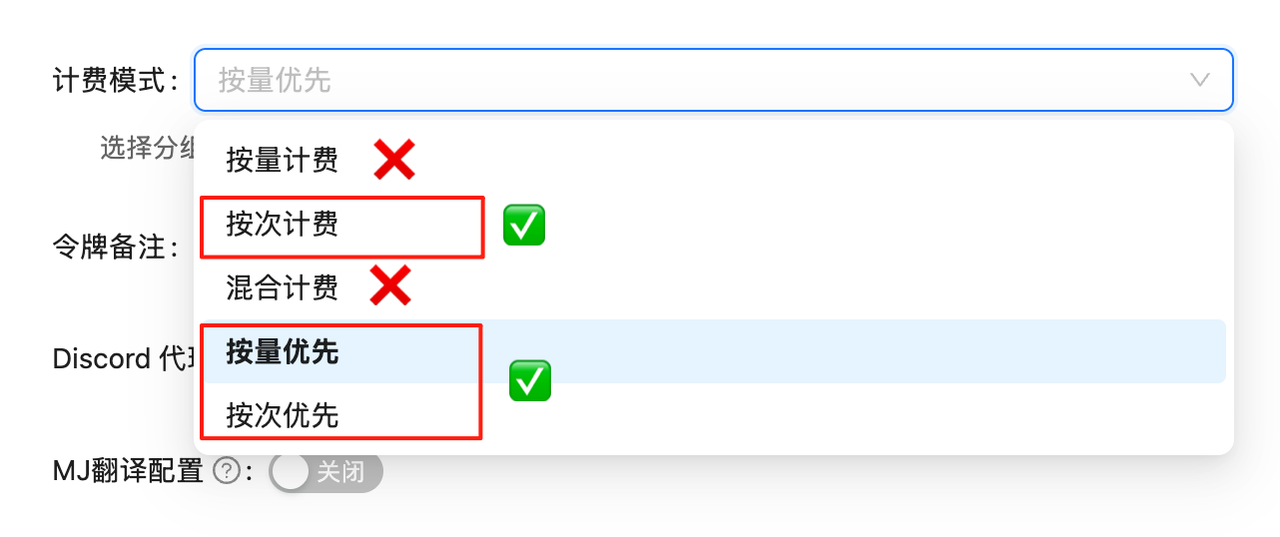 如果未设置计费模式,API调用会失败。必须先完成此配置!
## 模型简介
**Nano Banana Pro 编辑** (`gemini-3-pro-image-preview`) 专为需要精准控制和高质量输出的场景设计。不同于简单的滤镜或修补,它能理解复杂的自然语言指令,对画面进行逻辑性的修改。
### 核心能力
* **精准局部修改**: "把那只猫换成一只戴眼镜的狗,但保持姿势不变"
* **风格完美迁移**: "把这张照片变成赛博朋克风格的油画,光线要更加强烈"
* **多图创意融合**: "结合这两张图,生成一张全新的海报"
* **4K 高清输出**: 支持输出 2K/4K 分辨率的编辑结果
## 🌟 核心特性
* **⚡ 极速响应**:平均 10 秒完成编辑
* **💰 价格以控制台为准**:\$0.09/次,实际扣费以控制台记录为准
* **🔄 双重兼容**:支持 OpenAI SDK 和 Google 原生格式
* **📐 灵活尺寸**:Google 原生格式支持 10 种纵横比
* **🖼️ 高分辨率**:支持 1K、2K、4K 三种分辨率输出
* **🧠 思考模式**:内置推理能力,理解复杂编辑指令
* **🌐 搜索接地**:支持结合实时搜索数据进行编辑
* **🎨 多图参考**:支持最多 14 张参考图片进行复杂合成
* **📦 Base64 输出**:直接返回 base64 编码图片数据
* **🔗 URL 直传**:Google 原生格式支持直接传入图片 URL(需海外可访问),无需 Base64 编码
## 🔀 两种调用方式
| 特性 | OpenAI 兼容模式 | Google 原生格式 |
| -------- | ---------------------- | ----------------------------------------------------------- |
| **端点** | `/v1/chat/completions` | `/v1beta/models/gemini-3-pro-image-preview:generateContent` |
| **输出尺寸** | 默认比例 | 支持 10 种纵横比 |
| **分辨率** | 固定 1K | 支持 1K/2K/4K |
| **多图支持** | ✅ 支持 | ✅ 支持(最多 14 张) |
| **兼容性** | 完美兼容 OpenAI SDK | 需要原生调用 |
| **返回格式** | Base64 | Base64 |
| **图片输入** | URL 或 Base64 | URL(fileData)或 Base64(inline\_data) |
💡 **如何选择?**
* 如果价格要默认比例的图片,使用 **OpenAI 兼容模式**,简单快捷
* 如果需要自定义纵横比(如 16:9、9:16)或高分辨率(2K/4K),使用 **Google 原生格式**
## 📋 模型对比
### 与其他编辑模型对比
| 模型 | 模型 ID | 计费方式 | 老张价格 | 外部参考价 | 节省 | 分辨率 | 速度 |
| ------------------- | -------------------------------- | ----- | --------- | --------- | ----- | -------- | ----- |
| **Nano Banana Pro** | `gemini-3-pro-image-preview` | 按次 | \$0.09/次 | \$0.24/次 | 62.5% | 1K/2K/4K | \~10秒 |
| **Nano Banana2** | `gemini-3.1-flash-image-preview` | 按次 | \$0.055/次 | - | - | 1K/2K/4K | \~10秒 |
| **Nano Banana** | `gemini-2.5-flash-image` | 按次 | \$0.025/次 | \$0.04/次 | 37.5% | 1K(固定) | \~10秒 |
| **GPT-4o 编辑** | `gpt-4o` | Token | - | - | - | - | \~20秒 |
| **DALL·E 2 编辑** | `dall-e-2` | 按次 | - | \$0.018/张 | - | 固定 | 较慢 |
### Pro / Banana2 / Standard 详细对比
| 特性 | Nano Banana Pro | Nano Banana2 | Nano Banana |
| -------- | ---------------------------- | -------------------------------- | ------------------------ |
| **模型** | `gemini-3-pro-image-preview` | `gemini-3.1-flash-image-preview` | `gemini-2.5-flash-image` |
| **技术基础** | Gemini 3 | Gemini 3.1 Flash | Gemini 2.5 |
| **分辨率** | 1K/2K/4K | 1K/2K/4K | 1K(固定) |
| **价格** | \$0.09/次 | \$0.055/次 | \$0.025/次 |
| **思考模式** | ✅ 有 | ✅ 有 | ❌ 无 |
| **搜索接地** | ✅ 有 | ✅ 有 | ❌ 无 |
| **多图支持** | 最多 14 张 | 最多 14 张 | 最多 3 张 |
| **速度** | \~10秒 | \~10秒 | \~10秒 |
| **推荐场景** | 专业设计、复杂合成 | 日常高级用途、日常高级用途 | 快速修改、简单编辑 |
💰 **价格说明**
* **Nano Banana Pro**:\$0.09/次(老张API)vs \$0.24/次(官网),成本较低 62.5%
* **价格透明**:按次计费,实际扣费可在调用日志中查看
**Nano Banana Pro 在老张 API 成本控制超高!**
## 🚀 快速开始
### 准备工作
登录 [老张API令牌管理](https://api.laozhang.ai/token) 创建**按次计费**类型的令牌
如果未设置计费模式,API调用会失败。必须先完成此配置!
## 模型简介
**Nano Banana Pro 编辑** (`gemini-3-pro-image-preview`) 专为需要精准控制和高质量输出的场景设计。不同于简单的滤镜或修补,它能理解复杂的自然语言指令,对画面进行逻辑性的修改。
### 核心能力
* **精准局部修改**: "把那只猫换成一只戴眼镜的狗,但保持姿势不变"
* **风格完美迁移**: "把这张照片变成赛博朋克风格的油画,光线要更加强烈"
* **多图创意融合**: "结合这两张图,生成一张全新的海报"
* **4K 高清输出**: 支持输出 2K/4K 分辨率的编辑结果
## 🌟 核心特性
* **⚡ 极速响应**:平均 10 秒完成编辑
* **💰 价格以控制台为准**:\$0.09/次,实际扣费以控制台记录为准
* **🔄 双重兼容**:支持 OpenAI SDK 和 Google 原生格式
* **📐 灵活尺寸**:Google 原生格式支持 10 种纵横比
* **🖼️ 高分辨率**:支持 1K、2K、4K 三种分辨率输出
* **🧠 思考模式**:内置推理能力,理解复杂编辑指令
* **🌐 搜索接地**:支持结合实时搜索数据进行编辑
* **🎨 多图参考**:支持最多 14 张参考图片进行复杂合成
* **📦 Base64 输出**:直接返回 base64 编码图片数据
* **🔗 URL 直传**:Google 原生格式支持直接传入图片 URL(需海外可访问),无需 Base64 编码
## 🔀 两种调用方式
| 特性 | OpenAI 兼容模式 | Google 原生格式 |
| -------- | ---------------------- | ----------------------------------------------------------- |
| **端点** | `/v1/chat/completions` | `/v1beta/models/gemini-3-pro-image-preview:generateContent` |
| **输出尺寸** | 默认比例 | 支持 10 种纵横比 |
| **分辨率** | 固定 1K | 支持 1K/2K/4K |
| **多图支持** | ✅ 支持 | ✅ 支持(最多 14 张) |
| **兼容性** | 完美兼容 OpenAI SDK | 需要原生调用 |
| **返回格式** | Base64 | Base64 |
| **图片输入** | URL 或 Base64 | URL(fileData)或 Base64(inline\_data) |
💡 **如何选择?**
* 如果价格要默认比例的图片,使用 **OpenAI 兼容模式**,简单快捷
* 如果需要自定义纵横比(如 16:9、9:16)或高分辨率(2K/4K),使用 **Google 原生格式**
## 📋 模型对比
### 与其他编辑模型对比
| 模型 | 模型 ID | 计费方式 | 老张价格 | 外部参考价 | 节省 | 分辨率 | 速度 |
| ------------------- | -------------------------------- | ----- | --------- | --------- | ----- | -------- | ----- |
| **Nano Banana Pro** | `gemini-3-pro-image-preview` | 按次 | \$0.09/次 | \$0.24/次 | 62.5% | 1K/2K/4K | \~10秒 |
| **Nano Banana2** | `gemini-3.1-flash-image-preview` | 按次 | \$0.055/次 | - | - | 1K/2K/4K | \~10秒 |
| **Nano Banana** | `gemini-2.5-flash-image` | 按次 | \$0.025/次 | \$0.04/次 | 37.5% | 1K(固定) | \~10秒 |
| **GPT-4o 编辑** | `gpt-4o` | Token | - | - | - | - | \~20秒 |
| **DALL·E 2 编辑** | `dall-e-2` | 按次 | - | \$0.018/张 | - | 固定 | 较慢 |
### Pro / Banana2 / Standard 详细对比
| 特性 | Nano Banana Pro | Nano Banana2 | Nano Banana |
| -------- | ---------------------------- | -------------------------------- | ------------------------ |
| **模型** | `gemini-3-pro-image-preview` | `gemini-3.1-flash-image-preview` | `gemini-2.5-flash-image` |
| **技术基础** | Gemini 3 | Gemini 3.1 Flash | Gemini 2.5 |
| **分辨率** | 1K/2K/4K | 1K/2K/4K | 1K(固定) |
| **价格** | \$0.09/次 | \$0.055/次 | \$0.025/次 |
| **思考模式** | ✅ 有 | ✅ 有 | ❌ 无 |
| **搜索接地** | ✅ 有 | ✅ 有 | ❌ 无 |
| **多图支持** | 最多 14 张 | 最多 14 张 | 最多 3 张 |
| **速度** | \~10秒 | \~10秒 | \~10秒 |
| **推荐场景** | 专业设计、复杂合成 | 日常高级用途、日常高级用途 | 快速修改、简单编辑 |
💰 **价格说明**
* **Nano Banana Pro**:\$0.09/次(老张API)vs \$0.24/次(官网),成本较低 62.5%
* **价格透明**:按次计费,实际扣费可在调用日志中查看
**Nano Banana Pro 在老张 API 成本控制超高!**
## 🚀 快速开始
### 准备工作
登录 [老张API令牌管理](https://api.laozhang.ai/token) 创建**按次计费**类型的令牌
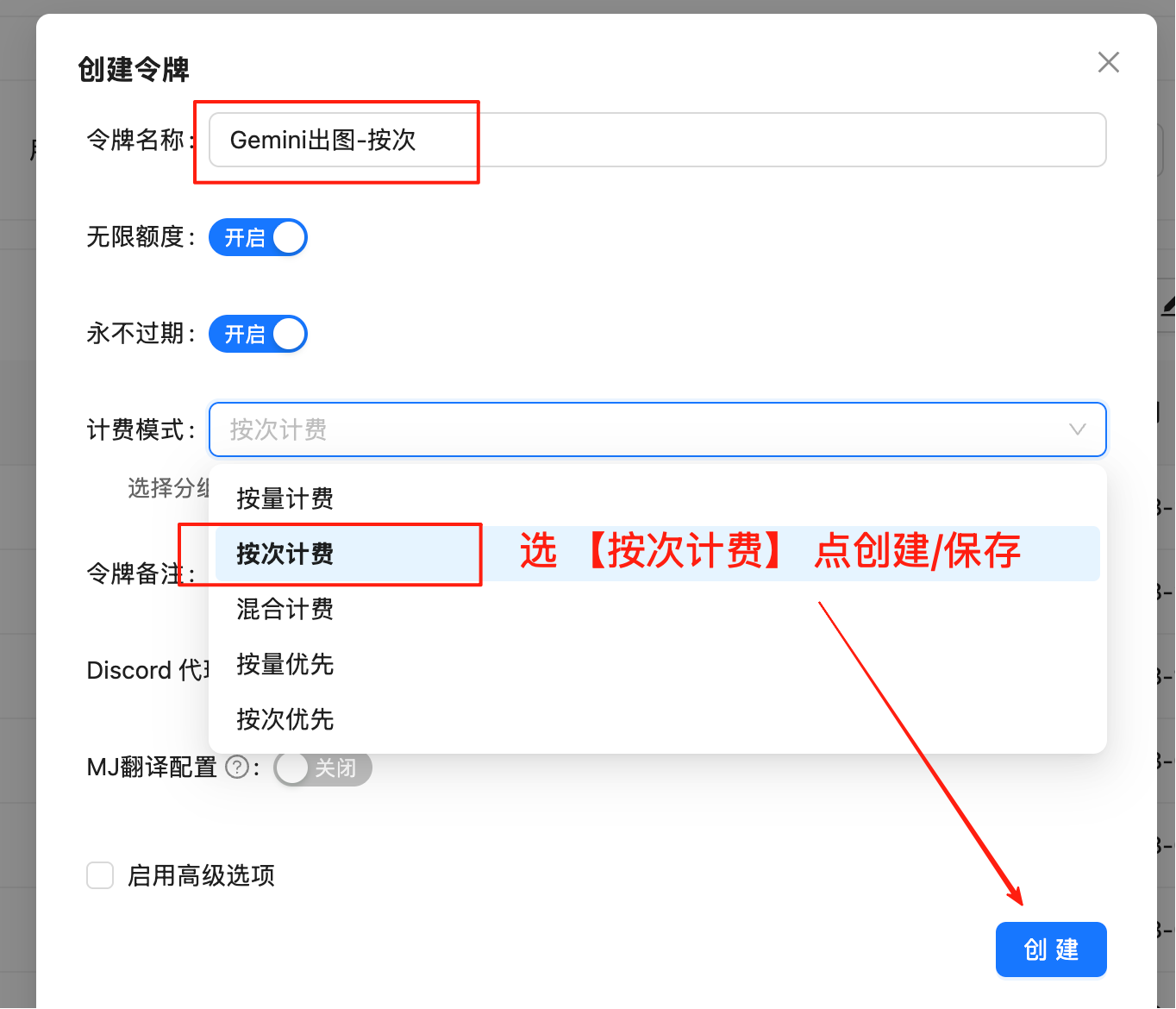 **重要**:必须选择"按次计费"类型
复制生成的令牌,格式为 `sk-xxxxxx`
## 方式一:OpenAI 兼容模式
### 单图编辑 - Curl
```bash theme={null}
curl -X POST "https://api.laozhang.ai/v1/chat/completions" \
-H "x-goog-api-key: sk-YOUR_API_KEY" \
-H "Content-Type: application/json" \
-d '{
"model": "gemini-3-pro-image-preview",
"stream": false,
"messages": [
{
"role": "user",
"content": [
{
"type": "text",
"text": "Add a futuristic neon halo above the person head"
},
{
"type": "image_url",
"image_url": {
"url": "https://example.com/your-image.jpg"
}
}
]
}
]
}'
```
### 单图编辑 - Python SDK
```python theme={null}
from openai import OpenAI
import base64
import re
client = OpenAI(
api_key="sk-YOUR_API_KEY",
base_url="https://api.laozhang.ai/v1"
)
response = client.chat.completions.create(
model="gemini-3-pro-image-preview",
messages=[
{
"role": "user",
"content": [
{
"type": "text",
"text": "Add a cute wizard hat on this cat's head"
},
{
"type": "image_url",
"image_url": {
"url": "https://example.com/your-image.jpg"
}
}
]
}
]
)
# 提取并保存图片
content = response.choices[0].message.content
match = re.search(r'!\[.*?\]\((data:image/png;base64,.*?)\)', content)
if match:
base64_data = match.group(1).split(',')[1]
image_data = base64.b64decode(base64_data)
with open('edited.png', 'wb') as f:
f.write(image_data)
print("✅ 编辑后的图片已保存: edited.png")
```
### 多图合成 - Python SDK
```python theme={null}
from openai import OpenAI
import base64
import re
client = OpenAI(
api_key="sk-YOUR_API_KEY",
base_url="https://api.laozhang.ai/v1"
)
response = client.chat.completions.create(
model="gemini-3-pro-image-preview",
messages=[
{
"role": "user",
"content": [
{
"type": "text",
"text": "Combine the style of image A with the content of image B"
},
{
"type": "image_url",
"image_url": {"url": "https://example.com/style.jpg"}
},
{
"type": "image_url",
"image_url": {"url": "https://example.com/content.jpg"}
}
]
}
]
)
# 提取并保存图片
content = response.choices[0].message.content
match = re.search(r'!\[.*?\]\((data:image/png;base64,.*?)\)', content)
if match:
base64_data = match.group(1).split(',')[1]
image_data = base64.b64decode(base64_data)
with open('merged.png', 'wb') as f:
f.write(image_data)
print("✅ 合成图片已保存: merged.png")
```
## 方式二:Google 原生格式(支持自定义纵横比 + 4K)
### 认证方式
Google 原生格式支持三种认证方式:
```bash theme={null}
# 方式1:URL 参数(推荐,最简洁)
https://api.laozhang.ai/v1beta/models/gemini-3-pro-image-preview:generateContent?key=sk-YOUR_API_KEY
# 方式2:Authorization Bearer Header
-H "Authorization: Bearer sk-YOUR_API_KEY"
# 方式3:x-goog-api-key Header
-H "x-goog-api-key: sk-YOUR_API_KEY"
```
💡 三种方式效果相同,选择你喜欢的即可。
### 支持的分辨率
| 纵横比 | 1K 分辨率 | 2K 分辨率 | 4K 分辨率 |
| -------- | --------- | --------- | --------- |
| **1:1** | 1024×1024 | 2048×2048 | 4096×4096 |
| **16:9** | 1376×768 | 2752×1536 | 5504×3072 |
| **9:16** | 768×1376 | 1536×2752 | 3072×5504 |
| **4:3** | 1200×896 | 2400×1792 | 4800×3584 |
| **3:4** | 896×1200 | 1792×2400 | 3584×4800 |
💡 **分辨率设置方法**
在 `generationConfig.imageConfig.imageSize` 中传入 `"2K"` 或 `"4K"`。不传则默认为 `"1K"`。
### 图片输入方式
Google 原生格式支持两种图片输入方式:
💡 **两种方式对比**
* **`inline_data`**:传入 Base64 编码数据,适合本地图片
* **`fileData`**:直接传入图片 URL,更简洁(推荐在线图片使用)
⚠️ **URL 方式限制**
使用 `fileData.fileUri` 传入图片 URL 时,需要满足以下条件:
* 图片 URL 必须是**海外公网可直接访问**的地址
* 图片服务器**不能有反爬机制**(如 Cloudflare 验证、验证码、User-Agent 检测等)
* 访问受限的图片,请使用 `inline_data` 方式(先下载再转 Base64)
### 4K 高清编辑 - Curl(Base64 方式)
```bash theme={null}
curl -X POST "https://api.laozhang.ai/v1beta/models/gemini-3-pro-image-preview:generateContent" \
-H "x-goog-api-key: sk-YOUR_API_KEY" \
-H "Content-Type: application/json" \
-d '{
"contents": [{
"parts": [
{"text": "Transform this image into a cyberpunk style with neon lights"},
{"inline_data": {"mime_type": "image/jpeg", "data": "BASE64_IMAGE_DATA_HERE"}}
]
}],
"generationConfig": {
"responseModalities": ["IMAGE"],
"imageConfig": {
"aspectRatio": "16:9",
"imageSize": "4K"
}
}
}'
```
### 4K 高清编辑 - Curl(URL 方式)
使用 `fileData.fileUri` 直接传入在线图片 URL,无需转换为 Base64:
```bash theme={null}
curl -X POST "https://api.laozhang.ai/v1beta/models/gemini-3-pro-image-preview:generateContent" \
-H "x-goog-api-key: sk-YOUR_API_KEY" \
-H "Content-Type: application/json" \
-d '{
"contents": [{
"parts": [
{
"fileData": {
"fileUri": "https://example.com/your-image.png",
"mimeType": "image/png"
}
},
{"text": "Add five cute dogs to this image"}
],
"role": "user"
}],
"generationConfig": {
"responseModalities": ["IMAGE"],
"imageConfig": {
"aspectRatio": "16:9",
"imageSize": "4K"
}
}
}'
```
💡 **URL 方式要点**
* 使用 `fileData.fileUri` 替代 `inline_data.data`
* 需要指定 `mimeType`(如 `image/png`、`image/jpeg`)
* 可选添加 `role: "user"` 明确角色
* 图片 URL 必须是海外公网可直接访问的地址
### Python 代码示例
💡 **三个示例递进关系**
示例1编辑图片 → 示例2用它变换风格 → 示例3融合前两张图。逻辑清晰!
```python theme={null}
import requests
import base64
# ========== 配置 ==========
API_KEY = "sk-YOUR_API_KEY"
API_URL = "https://api.laozhang.ai/v1beta/models/gemini-3-pro-image-preview:generateContent"
INPUT_IMAGE = "cat.jpg"
PROMPT = "Add a cute wizard hat on this cat's head"
ASPECT_RATIO = "1:1"
IMAGE_SIZE = "2K" # 1K, 2K, 4K
# ============================
# 读取并编码图片
with open(INPUT_IMAGE, "rb") as f:
image_b64 = base64.b64encode(f.read()).decode("utf-8")
headers = {"x-goog-api-key": API_KEY, "Content-Type": "application/json"}
payload = {
"contents": [{
"parts": [
{"text": PROMPT},
{"inline_data": {"mime_type": "image/jpeg", "data": image_b64}}
]
}],
"generationConfig": {
"responseModalities": ["IMAGE"],
"imageConfig": {
"aspectRatio": ASPECT_RATIO,
"imageSize": IMAGE_SIZE
}
}
}
response = requests.post(API_URL, headers=headers, json=payload, timeout=180)
result = response.json()
# 保存图片
output_data = result["candidates"][0]["content"]["parts"][0]["inlineData"]["data"]
with open("output.png", "wb") as f:
f.write(base64.b64decode(output_data))
print("✅ 图片已保存: output.png")
```
```python theme={null}
import requests
import base64
# ========== 配置 ==========
API_KEY = "sk-YOUR_API_KEY"
API_URL = "https://api.laozhang.ai/v1beta/models/gemini-3-pro-image-preview:generateContent"
INPUT_IMAGE = "output.png" # 使用示例1生成的图片
PROMPT = "Transform this cat into Van Gogh Starry Night style oil painting"
ASPECT_RATIO = "1:1"
IMAGE_SIZE = "2K"
# ============================
# 读取并编码图片
with open(INPUT_IMAGE, "rb") as f:
image_b64 = base64.b64encode(f.read()).decode("utf-8")
headers = {"x-goog-api-key": API_KEY, "Content-Type": "application/json"}
payload = {
"contents": [{
"parts": [
{"text": PROMPT},
{"inline_data": {"mime_type": "image/png", "data": image_b64}}
]
}],
"generationConfig": {
"responseModalities": ["IMAGE"],
"imageConfig": {
"aspectRatio": ASPECT_RATIO,
"imageSize": IMAGE_SIZE
}
}
}
response = requests.post(API_URL, headers=headers, json=payload, timeout=180)
result = response.json()
# 保存图片
output_data = result["candidates"][0]["content"]["parts"][0]["inlineData"]["data"]
with open("output_styled.png", "wb") as f:
f.write(base64.b64decode(output_data))
print("✅ 图片已保存: output_styled.png")
```
```python theme={null}
import requests
import base64
# ========== 配置 ==========
API_KEY = "sk-YOUR_API_KEY"
API_URL = "https://api.laozhang.ai/v1beta/models/gemini-3-pro-image-preview:generateContent"
# 使用前面生成的两张图(示例1和示例2的输出)
IMAGES = ["output.png", "output_styled.png"]
PROMPT = "Combine these two cat images into a single artistic composition"
ASPECT_RATIO = "16:9"
IMAGE_SIZE = "2K"
# ============================
# 构建 parts: 文本 + 多张图片
parts = [{"text": PROMPT}]
for img_path in IMAGES:
with open(img_path, "rb") as f:
img_b64 = base64.b64encode(f.read()).decode("utf-8")
parts.append({"inline_data": {"mime_type": "image/png", "data": img_b64}})
headers = {"x-goog-api-key": API_KEY, "Content-Type": "application/json"}
payload = {
"contents": [{"parts": parts}],
"generationConfig": {
"responseModalities": ["IMAGE"],
"imageConfig": {
"aspectRatio": ASPECT_RATIO,
"imageSize": IMAGE_SIZE
}
}
}
response = requests.post(API_URL, headers=headers, json=payload, timeout=180)
result = response.json()
# 保存图片
output_data = result["candidates"][0]["content"]["parts"][0]["inlineData"]["data"]
with open("output_mixed.png", "wb") as f:
f.write(base64.b64decode(output_data))
print("✅ 图片已保存: output_mixed.png")
```
```python theme={null}
import requests
import base64
# ========== 配置 ==========
API_KEY = "sk-YOUR_API_KEY"
API_URL = "https://api.laozhang.ai/v1beta/models/gemini-3-pro-image-preview:generateContent"
# 使用在线图片 URL(必须是海外可访问的地址)
IMAGE_URL = "https://example.com/your-image.png"
PROMPT = "Add a beautiful sunset in the background"
ASPECT_RATIO = "16:9"
IMAGE_SIZE = "4K"
# ============================
headers = {"x-goog-api-key": API_KEY, "Content-Type": "application/json"}
# 使用 fileData.fileUri 方式 - 无需下载和编码图片
payload = {
"contents": [{
"parts": [
{
"fileData": {
"fileUri": IMAGE_URL,
"mimeType": "image/png"
}
},
{"text": PROMPT}
],
"role": "user"
}],
"generationConfig": {
"responseModalities": ["IMAGE"],
"imageConfig": {
"aspectRatio": ASPECT_RATIO,
"imageSize": IMAGE_SIZE
}
}
}
response = requests.post(API_URL, headers=headers, json=payload, timeout=180)
result = response.json()
# 保存图片
output_data = result["candidates"][0]["content"]["parts"][0]["inlineData"]["data"]
with open("output_url.png", "wb") as f:
f.write(base64.b64decode(output_data))
print("✅ 图片已保存: output_url.png")
```
```python theme={null}
#!/usr/bin/env python3
# -*- coding: utf-8 -*-
"""
Nano Banana Pro 图片编辑工具 - Python版本
上传本地图片 + 文字描述,生成新图片,支持自定义纵横比和分辨率
"""
import requests
import base64
import os
import datetime
import mimetypes
from typing import Optional, Tuple, List
class NanaBananaProEditor:
"""Nano Banana Pro 图片编辑器"""
SUPPORTED_ASPECT_RATIOS = [
"21:9", "16:9", "4:3", "3:2", "1:1",
"9:16", "3:4", "2:3", "5:4", "4:5"
]
SUPPORTED_SIZES = ["1K", "2K", "4K"]
def __init__(self, api_key: str):
self.api_key = api_key
self.api_url = "https://api.laozhang.ai/v1beta/models/gemini-3-pro-image-preview:generateContent"
self.headers = {
"Content-Type": "application/json",
"x-goog-api-key": api_key
}
def edit_image(self, image_path: str, prompt: str,
aspect_ratio: str = "1:1",
image_size: str = "2K",
output_dir: str = ".") -> Tuple[bool, str]:
"""
编辑单张图片
参数:
image_path: 输入图片路径
prompt: 编辑描述
aspect_ratio: 纵横比
image_size: 分辨率 (1K, 2K, 4K)
output_dir: 保存目录
返回:
(是否成功, 结果消息)
"""
print(f"🚀 开始编辑图片...")
print(f"📁 输入图片: {image_path}")
print(f"📝 编辑描述: {prompt}")
print(f"📐 纵横比: {aspect_ratio}")
print(f"🖼️ 分辨率: {image_size}")
if not os.path.exists(image_path):
return False, f"图片文件不存在: {image_path}"
if aspect_ratio not in self.SUPPORTED_ASPECT_RATIOS:
return False, f"不支持的纵横比 {aspect_ratio}"
if image_size not in self.SUPPORTED_SIZES:
return False, f"不支持的分辨率 {image_size}"
# 读取并编码图片
try:
with open(image_path, 'rb') as f:
image_data = f.read()
image_base64 = base64.b64encode(image_data).decode('utf-8')
mime_type, _ = mimetypes.guess_type(image_path)
if not mime_type or not mime_type.startswith('image/'):
mime_type = 'image/jpeg'
except Exception as e:
return False, f"读取图片失败: {str(e)}"
# 生成输出文件名
timestamp = datetime.datetime.now().strftime("%Y%m%d_%H%M%S")
output_file = os.path.join(output_dir, f"edited_{timestamp}.png")
try:
payload = {
"contents": [{
"parts": [
{"text": prompt},
{"inline_data": {"mime_type": mime_type, "data": image_base64}}
]
}],
"generationConfig": {
"responseModalities": ["IMAGE"],
"imageConfig": {
"aspectRatio": aspect_ratio,
"imageSize": image_size
}
}
}
print("📡 发送请求到 API...")
response = requests.post(self.api_url, headers=self.headers, json=payload, timeout=180)
if response.status_code != 200:
return False, f"API 请求失败,状态码: {response.status_code}"
result = response.json()
output_image_data = result["candidates"][0]["content"]["parts"][0]["inlineData"]["data"]
print("💾 正在保存图片...")
decoded_data = base64.b64decode(output_image_data)
with open(output_file, 'wb') as f:
f.write(decoded_data)
file_size = len(decoded_data) / 1024
print(f"✅ 图片已保存: {output_file}")
print(f"📊 文件大小: {file_size:.2f} KB")
return True, f"成功保存图片: {output_file}"
except Exception as e:
return False, f"错误: {str(e)}"
def merge_images(self, image_paths: List[str], prompt: str,
aspect_ratio: str = "16:9",
image_size: str = "2K",
output_dir: str = ".") -> Tuple[bool, str]:
"""
合并多张图片
参数:
image_paths: 输入图片路径列表
prompt: 合并描述
aspect_ratio: 纵横比
image_size: 分辨率
output_dir: 保存目录
返回:
(是否成功, 结果消息)
"""
print(f"🚀 开始合并 {len(image_paths)} 张图片...")
parts = [{"text": prompt}]
for img_path in image_paths:
if not os.path.exists(img_path):
return False, f"图片文件不存在: {img_path}"
with open(img_path, 'rb') as f:
img_data = f.read()
img_b64 = base64.b64encode(img_data).decode('utf-8')
mime_type, _ = mimetypes.guess_type(img_path)
if not mime_type:
mime_type = 'image/jpeg'
parts.append({"inline_data": {"mime_type": mime_type, "data": img_b64}})
timestamp = datetime.datetime.now().strftime("%Y%m%d_%H%M%S")
output_file = os.path.join(output_dir, f"merged_{timestamp}.png")
try:
payload = {
"contents": [{"parts": parts}],
"generationConfig": {
"responseModalities": ["IMAGE"],
"imageConfig": {
"aspectRatio": aspect_ratio,
"imageSize": image_size
}
}
}
print("📡 发送请求到 API...")
response = requests.post(self.api_url, headers=self.headers, json=payload, timeout=180)
if response.status_code != 200:
return False, f"API 请求失败,状态码: {response.status_code}"
result = response.json()
output_image_data = result["candidates"][0]["content"]["parts"][0]["inlineData"]["data"]
print("💾 正在保存图片...")
decoded_data = base64.b64decode(output_image_data)
with open(output_file, 'wb') as f:
f.write(decoded_data)
print(f"✅ 图片已保存: {output_file}")
return True, f"成功保存图片: {output_file}"
except Exception as e:
return False, f"错误: {str(e)}"
def main():
"""主函数 - 使用示例"""
API_KEY = "sk-YOUR_API_KEY"
editor = NanaBananaProEditor(API_KEY)
# 示例1: 单图编辑
success, message = editor.edit_image(
image_path="./input.jpg",
prompt="Add a rainbow in the sky",
aspect_ratio="16:9",
image_size="2K"
)
print(message)
# 示例2: 多图合并
success, message = editor.merge_images(
image_paths=["./cat.jpg", "./dog.jpg"],
prompt="Combine these two pets into one happy family portrait",
aspect_ratio="1:1",
image_size="2K"
)
print(message)
if __name__ == "__main__":
main()
```
## 🎯 编辑场景示例
### 1. 单图编辑 - 添加元素
```python theme={null}
def add_element_to_image(image_url, element_description):
"""向图片添加新元素"""
headers = {
"x-goog-api-key": API_KEY,
"Content-Type": "application/json"
}
data = {
"model": "gemini-3-pro-image-preview",
"stream": False,
"messages": [{
"role": "user",
"content": [
{"type": "text", "text": f"Add {element_description} to this image"},
{"type": "image_url", "image_url": {"url": image_url}}
]
}]
}
response = requests.post(API_URL, headers=headers, json=data)
return extract_base64_from_response(response.json())
# 使用示例
result = add_element_to_image(
"https://example.com/landscape.jpg",
"a rainbow in the sky"
)
```
### 2. 风格转换
```python theme={null}
def style_transfer(image_url, style_description):
"""图片风格转换"""
headers = {
"x-goog-api-key": API_KEY,
"Content-Type": "application/json"
}
data = {
"model": "gemini-3-pro-image-preview",
"stream": False,
"messages": [{
"role": "user",
"content": [
{"type": "text", "text": f"Transform this image into {style_description} style"},
{"type": "image_url", "image_url": {"url": image_url}}
]
}]
}
response = requests.post(API_URL, headers=headers, json=data)
return extract_base64_from_response(response.json())
# 使用示例
result = style_transfer(
"https://example.com/photo.jpg",
"Van Gogh oil painting"
)
```
### 3. 多图合成
```python theme={null}
def creative_merge(image_urls, merge_instruction):
"""创意合并多张图片"""
content = [{"type": "text", "text": merge_instruction}]
for url in image_urls:
content.append({
"type": "image_url",
"image_url": {"url": url}
})
headers = {
"x-goog-api-key": API_KEY,
"Content-Type": "application/json"
}
data = {
"model": "gemini-3-pro-image-preview",
"stream": False,
"messages": [{"role": "user", "content": content}]
}
response = requests.post(API_URL, headers=headers, json=data)
return extract_base64_from_response(response.json())
# 使用示例
images = ["https://example.com/cat.jpg", "https://example.com/background.jpg"]
result = creative_merge(images, "将猫咪自然地融入到背景中")
```
## 💡 最佳实践
### 编辑指令优化
```python theme={null}
# ❌ 模糊指令
instruction = "edit the image"
# ✅ 清晰具体的指令
instruction = """
1. 在图片右上角添加一轮明月
2. 调整整体色调为暖色系
3. 增加一些萤火虫的光点效果
4. 保持原图的主体不变
"""
```
### 多图处理策略
```python theme={null}
def smart_multi_image_edit(images, instruction):
"""智能多图编辑"""
if len(images) == 1:
prompt = f"Edit this image: {instruction}"
elif len(images) == 2:
prompt = f"Combine these two images creatively: {instruction}"
else:
prompt = f"Process these {len(images)} images together: {instruction}"
# 构建 content...
return send_edit_request(content)
```
## ❓ 常见问题
| 特性 | Nano Banana Pro | Nano Banana |
| -------- | --------------- | ----------- |
| **分辨率** | 1K/2K/4K | 1K(固定) |
| **思考模式** | ✅ 有 | ❌ 无 |
| **搜索接地** | ✅ 有 | ❌ 无 |
| **多图支持** | 最多 14 张 | 最多 3 张 |
| **价格** | \$0.09/次 | \$0.025/次 |
| **推荐场景** | 专业设计、复杂合成 | 快速修改、简单编辑 |
**4K 仅 Nano Banana Pro 支持**,使用 Google 原生格式并添加 `imageSize` 参数:
```json theme={null}
{
"generationConfig": {
"responseModalities": ["IMAGE"],
"imageConfig": {
"aspectRatio": "16:9",
"imageSize": "4K"
}
}
}
```
**重要**:必须使用大写 "K"(1K、2K、4K)。
支持常见的图片格式:
* JPG/JPEG
* PNG
* WebP
* GIF(静态)
建议使用 JPG 或 PNG 格式以获得最佳效果。
* **推荐大小**:单张图片 ≤ 5MB
* **最大大小**:≤ 10MB
* 过大的图片会增加处理时间,建议压缩后上传
* **Nano Banana Pro**:支持最多 14 张图片
* **Nano Banana**:支持最多 3 张图片
* 图片过多会影响生成质量和处理时间,建议 ≤ 4 张
| 模型 | 老张 API | 官网 | 节省 |
| ------------------- | --------- | -------- | --------- |
| **Nano Banana Pro** | \$0.09/次 | \$0.24/次 | **62.5%** |
| **Nano Banana** | \$0.025/次 | \$0.04/次 | 37.5% |
**Nano Banana Pro 在老张 API 成本控制超高!**
**完美支持!** Gemini 3 Pro 拥有顶级的多语言理解能力,您可以直接使用中文描述编辑需求。
1. **详细描述**:提供具体的编辑细节
2. **分步骤**:复杂编辑分多个步骤描述
3. **参考风格**:指定艺术风格
4. **保持主体**:明确说明需要保留的内容
Google 原生格式支持两种图片输入方式:
**1. URL 方式(`fileData.fileUri`)** - 更简洁
```json theme={null}
{
"fileData": {
"fileUri": "https://example.com/image.png",
"mimeType": "image/png"
}
}
```
**2. Base64 方式(`inline_data`)** - 更通用
```json theme={null}
{
"inline_data": {
"mime_type": "image/png",
"data": "BASE64_ENCODED_DATA"
}
}
```
**⚠️ URL 方式限制:**
* 图片 URL 必须是**海外公网可直接访问**的地址
* 图片服务器**不能有反爬机制**(Cloudflare 验证、验证码等)
* 访问受限的图片,请使用 Base64 方式
**推荐场景:**
* 图片托管在 AWS S3、Google Cloud Storage、Cloudinary 等 → 用 URL
* 图片位于受限网络或有访问限制 → 用 Base64
## 🎯 常见用例
1. **电商换模特**: 上传衣服图和模特图,生成穿搭效果
2. **装修设计**: 上传毛坯房照片,通过 Prompt 生成装修后效果
3. **游戏素材**: 快速修改游戏图标或角色外观
4. **社交媒体**: 将人像照片转换为各种艺术风格
5. **产品展示**: 将产品放入不同场景背景中
6. **创意海报**: 融合多张素材生成海报设计
## 🔗 相关资源
学习如何使用 Nano Banana Pro 从文字生成图片
可选的 Nano Banana Standard 编辑版本
创建和管理你的 API 令牌
查看详细的价格表和计费说明
***
## 📝 更新日志
**🔗 新增 fileData.fileUri 方式**
* 支持直接传入在线图片 URL,无需下载和 Base64 编码
* 新增 Curl 和 Python 代码示例
* 注意:图片 URL 需海外公网可访问且无反爬机制
* 新增相关 FAQ 说明
**🚀 Nano Banana Pro 编辑专属页面**
* 从混合文档拆分为独立的 Pro 版本文档
* 完整的 4K 分辨率编辑指南
* 详细的多图合成说明
* 完整的代码示例和最佳实践
* 与 Nano Banana Standard 的对比说明
**重要**:必须选择"按次计费"类型
复制生成的令牌,格式为 `sk-xxxxxx`
## 方式一:OpenAI 兼容模式
### 单图编辑 - Curl
```bash theme={null}
curl -X POST "https://api.laozhang.ai/v1/chat/completions" \
-H "x-goog-api-key: sk-YOUR_API_KEY" \
-H "Content-Type: application/json" \
-d '{
"model": "gemini-3-pro-image-preview",
"stream": false,
"messages": [
{
"role": "user",
"content": [
{
"type": "text",
"text": "Add a futuristic neon halo above the person head"
},
{
"type": "image_url",
"image_url": {
"url": "https://example.com/your-image.jpg"
}
}
]
}
]
}'
```
### 单图编辑 - Python SDK
```python theme={null}
from openai import OpenAI
import base64
import re
client = OpenAI(
api_key="sk-YOUR_API_KEY",
base_url="https://api.laozhang.ai/v1"
)
response = client.chat.completions.create(
model="gemini-3-pro-image-preview",
messages=[
{
"role": "user",
"content": [
{
"type": "text",
"text": "Add a cute wizard hat on this cat's head"
},
{
"type": "image_url",
"image_url": {
"url": "https://example.com/your-image.jpg"
}
}
]
}
]
)
# 提取并保存图片
content = response.choices[0].message.content
match = re.search(r'!\[.*?\]\((data:image/png;base64,.*?)\)', content)
if match:
base64_data = match.group(1).split(',')[1]
image_data = base64.b64decode(base64_data)
with open('edited.png', 'wb') as f:
f.write(image_data)
print("✅ 编辑后的图片已保存: edited.png")
```
### 多图合成 - Python SDK
```python theme={null}
from openai import OpenAI
import base64
import re
client = OpenAI(
api_key="sk-YOUR_API_KEY",
base_url="https://api.laozhang.ai/v1"
)
response = client.chat.completions.create(
model="gemini-3-pro-image-preview",
messages=[
{
"role": "user",
"content": [
{
"type": "text",
"text": "Combine the style of image A with the content of image B"
},
{
"type": "image_url",
"image_url": {"url": "https://example.com/style.jpg"}
},
{
"type": "image_url",
"image_url": {"url": "https://example.com/content.jpg"}
}
]
}
]
)
# 提取并保存图片
content = response.choices[0].message.content
match = re.search(r'!\[.*?\]\((data:image/png;base64,.*?)\)', content)
if match:
base64_data = match.group(1).split(',')[1]
image_data = base64.b64decode(base64_data)
with open('merged.png', 'wb') as f:
f.write(image_data)
print("✅ 合成图片已保存: merged.png")
```
## 方式二:Google 原生格式(支持自定义纵横比 + 4K)
### 认证方式
Google 原生格式支持三种认证方式:
```bash theme={null}
# 方式1:URL 参数(推荐,最简洁)
https://api.laozhang.ai/v1beta/models/gemini-3-pro-image-preview:generateContent?key=sk-YOUR_API_KEY
# 方式2:Authorization Bearer Header
-H "Authorization: Bearer sk-YOUR_API_KEY"
# 方式3:x-goog-api-key Header
-H "x-goog-api-key: sk-YOUR_API_KEY"
```
💡 三种方式效果相同,选择你喜欢的即可。
### 支持的分辨率
| 纵横比 | 1K 分辨率 | 2K 分辨率 | 4K 分辨率 |
| -------- | --------- | --------- | --------- |
| **1:1** | 1024×1024 | 2048×2048 | 4096×4096 |
| **16:9** | 1376×768 | 2752×1536 | 5504×3072 |
| **9:16** | 768×1376 | 1536×2752 | 3072×5504 |
| **4:3** | 1200×896 | 2400×1792 | 4800×3584 |
| **3:4** | 896×1200 | 1792×2400 | 3584×4800 |
💡 **分辨率设置方法**
在 `generationConfig.imageConfig.imageSize` 中传入 `"2K"` 或 `"4K"`。不传则默认为 `"1K"`。
### 图片输入方式
Google 原生格式支持两种图片输入方式:
💡 **两种方式对比**
* **`inline_data`**:传入 Base64 编码数据,适合本地图片
* **`fileData`**:直接传入图片 URL,更简洁(推荐在线图片使用)
⚠️ **URL 方式限制**
使用 `fileData.fileUri` 传入图片 URL 时,需要满足以下条件:
* 图片 URL 必须是**海外公网可直接访问**的地址
* 图片服务器**不能有反爬机制**(如 Cloudflare 验证、验证码、User-Agent 检测等)
* 访问受限的图片,请使用 `inline_data` 方式(先下载再转 Base64)
### 4K 高清编辑 - Curl(Base64 方式)
```bash theme={null}
curl -X POST "https://api.laozhang.ai/v1beta/models/gemini-3-pro-image-preview:generateContent" \
-H "x-goog-api-key: sk-YOUR_API_KEY" \
-H "Content-Type: application/json" \
-d '{
"contents": [{
"parts": [
{"text": "Transform this image into a cyberpunk style with neon lights"},
{"inline_data": {"mime_type": "image/jpeg", "data": "BASE64_IMAGE_DATA_HERE"}}
]
}],
"generationConfig": {
"responseModalities": ["IMAGE"],
"imageConfig": {
"aspectRatio": "16:9",
"imageSize": "4K"
}
}
}'
```
### 4K 高清编辑 - Curl(URL 方式)
使用 `fileData.fileUri` 直接传入在线图片 URL,无需转换为 Base64:
```bash theme={null}
curl -X POST "https://api.laozhang.ai/v1beta/models/gemini-3-pro-image-preview:generateContent" \
-H "x-goog-api-key: sk-YOUR_API_KEY" \
-H "Content-Type: application/json" \
-d '{
"contents": [{
"parts": [
{
"fileData": {
"fileUri": "https://example.com/your-image.png",
"mimeType": "image/png"
}
},
{"text": "Add five cute dogs to this image"}
],
"role": "user"
}],
"generationConfig": {
"responseModalities": ["IMAGE"],
"imageConfig": {
"aspectRatio": "16:9",
"imageSize": "4K"
}
}
}'
```
💡 **URL 方式要点**
* 使用 `fileData.fileUri` 替代 `inline_data.data`
* 需要指定 `mimeType`(如 `image/png`、`image/jpeg`)
* 可选添加 `role: "user"` 明确角色
* 图片 URL 必须是海外公网可直接访问的地址
### Python 代码示例
💡 **三个示例递进关系**
示例1编辑图片 → 示例2用它变换风格 → 示例3融合前两张图。逻辑清晰!
```python theme={null}
import requests
import base64
# ========== 配置 ==========
API_KEY = "sk-YOUR_API_KEY"
API_URL = "https://api.laozhang.ai/v1beta/models/gemini-3-pro-image-preview:generateContent"
INPUT_IMAGE = "cat.jpg"
PROMPT = "Add a cute wizard hat on this cat's head"
ASPECT_RATIO = "1:1"
IMAGE_SIZE = "2K" # 1K, 2K, 4K
# ============================
# 读取并编码图片
with open(INPUT_IMAGE, "rb") as f:
image_b64 = base64.b64encode(f.read()).decode("utf-8")
headers = {"x-goog-api-key": API_KEY, "Content-Type": "application/json"}
payload = {
"contents": [{
"parts": [
{"text": PROMPT},
{"inline_data": {"mime_type": "image/jpeg", "data": image_b64}}
]
}],
"generationConfig": {
"responseModalities": ["IMAGE"],
"imageConfig": {
"aspectRatio": ASPECT_RATIO,
"imageSize": IMAGE_SIZE
}
}
}
response = requests.post(API_URL, headers=headers, json=payload, timeout=180)
result = response.json()
# 保存图片
output_data = result["candidates"][0]["content"]["parts"][0]["inlineData"]["data"]
with open("output.png", "wb") as f:
f.write(base64.b64decode(output_data))
print("✅ 图片已保存: output.png")
```
```python theme={null}
import requests
import base64
# ========== 配置 ==========
API_KEY = "sk-YOUR_API_KEY"
API_URL = "https://api.laozhang.ai/v1beta/models/gemini-3-pro-image-preview:generateContent"
INPUT_IMAGE = "output.png" # 使用示例1生成的图片
PROMPT = "Transform this cat into Van Gogh Starry Night style oil painting"
ASPECT_RATIO = "1:1"
IMAGE_SIZE = "2K"
# ============================
# 读取并编码图片
with open(INPUT_IMAGE, "rb") as f:
image_b64 = base64.b64encode(f.read()).decode("utf-8")
headers = {"x-goog-api-key": API_KEY, "Content-Type": "application/json"}
payload = {
"contents": [{
"parts": [
{"text": PROMPT},
{"inline_data": {"mime_type": "image/png", "data": image_b64}}
]
}],
"generationConfig": {
"responseModalities": ["IMAGE"],
"imageConfig": {
"aspectRatio": ASPECT_RATIO,
"imageSize": IMAGE_SIZE
}
}
}
response = requests.post(API_URL, headers=headers, json=payload, timeout=180)
result = response.json()
# 保存图片
output_data = result["candidates"][0]["content"]["parts"][0]["inlineData"]["data"]
with open("output_styled.png", "wb") as f:
f.write(base64.b64decode(output_data))
print("✅ 图片已保存: output_styled.png")
```
```python theme={null}
import requests
import base64
# ========== 配置 ==========
API_KEY = "sk-YOUR_API_KEY"
API_URL = "https://api.laozhang.ai/v1beta/models/gemini-3-pro-image-preview:generateContent"
# 使用前面生成的两张图(示例1和示例2的输出)
IMAGES = ["output.png", "output_styled.png"]
PROMPT = "Combine these two cat images into a single artistic composition"
ASPECT_RATIO = "16:9"
IMAGE_SIZE = "2K"
# ============================
# 构建 parts: 文本 + 多张图片
parts = [{"text": PROMPT}]
for img_path in IMAGES:
with open(img_path, "rb") as f:
img_b64 = base64.b64encode(f.read()).decode("utf-8")
parts.append({"inline_data": {"mime_type": "image/png", "data": img_b64}})
headers = {"x-goog-api-key": API_KEY, "Content-Type": "application/json"}
payload = {
"contents": [{"parts": parts}],
"generationConfig": {
"responseModalities": ["IMAGE"],
"imageConfig": {
"aspectRatio": ASPECT_RATIO,
"imageSize": IMAGE_SIZE
}
}
}
response = requests.post(API_URL, headers=headers, json=payload, timeout=180)
result = response.json()
# 保存图片
output_data = result["candidates"][0]["content"]["parts"][0]["inlineData"]["data"]
with open("output_mixed.png", "wb") as f:
f.write(base64.b64decode(output_data))
print("✅ 图片已保存: output_mixed.png")
```
```python theme={null}
import requests
import base64
# ========== 配置 ==========
API_KEY = "sk-YOUR_API_KEY"
API_URL = "https://api.laozhang.ai/v1beta/models/gemini-3-pro-image-preview:generateContent"
# 使用在线图片 URL(必须是海外可访问的地址)
IMAGE_URL = "https://example.com/your-image.png"
PROMPT = "Add a beautiful sunset in the background"
ASPECT_RATIO = "16:9"
IMAGE_SIZE = "4K"
# ============================
headers = {"x-goog-api-key": API_KEY, "Content-Type": "application/json"}
# 使用 fileData.fileUri 方式 - 无需下载和编码图片
payload = {
"contents": [{
"parts": [
{
"fileData": {
"fileUri": IMAGE_URL,
"mimeType": "image/png"
}
},
{"text": PROMPT}
],
"role": "user"
}],
"generationConfig": {
"responseModalities": ["IMAGE"],
"imageConfig": {
"aspectRatio": ASPECT_RATIO,
"imageSize": IMAGE_SIZE
}
}
}
response = requests.post(API_URL, headers=headers, json=payload, timeout=180)
result = response.json()
# 保存图片
output_data = result["candidates"][0]["content"]["parts"][0]["inlineData"]["data"]
with open("output_url.png", "wb") as f:
f.write(base64.b64decode(output_data))
print("✅ 图片已保存: output_url.png")
```
```python theme={null}
#!/usr/bin/env python3
# -*- coding: utf-8 -*-
"""
Nano Banana Pro 图片编辑工具 - Python版本
上传本地图片 + 文字描述,生成新图片,支持自定义纵横比和分辨率
"""
import requests
import base64
import os
import datetime
import mimetypes
from typing import Optional, Tuple, List
class NanaBananaProEditor:
"""Nano Banana Pro 图片编辑器"""
SUPPORTED_ASPECT_RATIOS = [
"21:9", "16:9", "4:3", "3:2", "1:1",
"9:16", "3:4", "2:3", "5:4", "4:5"
]
SUPPORTED_SIZES = ["1K", "2K", "4K"]
def __init__(self, api_key: str):
self.api_key = api_key
self.api_url = "https://api.laozhang.ai/v1beta/models/gemini-3-pro-image-preview:generateContent"
self.headers = {
"Content-Type": "application/json",
"x-goog-api-key": api_key
}
def edit_image(self, image_path: str, prompt: str,
aspect_ratio: str = "1:1",
image_size: str = "2K",
output_dir: str = ".") -> Tuple[bool, str]:
"""
编辑单张图片
参数:
image_path: 输入图片路径
prompt: 编辑描述
aspect_ratio: 纵横比
image_size: 分辨率 (1K, 2K, 4K)
output_dir: 保存目录
返回:
(是否成功, 结果消息)
"""
print(f"🚀 开始编辑图片...")
print(f"📁 输入图片: {image_path}")
print(f"📝 编辑描述: {prompt}")
print(f"📐 纵横比: {aspect_ratio}")
print(f"🖼️ 分辨率: {image_size}")
if not os.path.exists(image_path):
return False, f"图片文件不存在: {image_path}"
if aspect_ratio not in self.SUPPORTED_ASPECT_RATIOS:
return False, f"不支持的纵横比 {aspect_ratio}"
if image_size not in self.SUPPORTED_SIZES:
return False, f"不支持的分辨率 {image_size}"
# 读取并编码图片
try:
with open(image_path, 'rb') as f:
image_data = f.read()
image_base64 = base64.b64encode(image_data).decode('utf-8')
mime_type, _ = mimetypes.guess_type(image_path)
if not mime_type or not mime_type.startswith('image/'):
mime_type = 'image/jpeg'
except Exception as e:
return False, f"读取图片失败: {str(e)}"
# 生成输出文件名
timestamp = datetime.datetime.now().strftime("%Y%m%d_%H%M%S")
output_file = os.path.join(output_dir, f"edited_{timestamp}.png")
try:
payload = {
"contents": [{
"parts": [
{"text": prompt},
{"inline_data": {"mime_type": mime_type, "data": image_base64}}
]
}],
"generationConfig": {
"responseModalities": ["IMAGE"],
"imageConfig": {
"aspectRatio": aspect_ratio,
"imageSize": image_size
}
}
}
print("📡 发送请求到 API...")
response = requests.post(self.api_url, headers=self.headers, json=payload, timeout=180)
if response.status_code != 200:
return False, f"API 请求失败,状态码: {response.status_code}"
result = response.json()
output_image_data = result["candidates"][0]["content"]["parts"][0]["inlineData"]["data"]
print("💾 正在保存图片...")
decoded_data = base64.b64decode(output_image_data)
with open(output_file, 'wb') as f:
f.write(decoded_data)
file_size = len(decoded_data) / 1024
print(f"✅ 图片已保存: {output_file}")
print(f"📊 文件大小: {file_size:.2f} KB")
return True, f"成功保存图片: {output_file}"
except Exception as e:
return False, f"错误: {str(e)}"
def merge_images(self, image_paths: List[str], prompt: str,
aspect_ratio: str = "16:9",
image_size: str = "2K",
output_dir: str = ".") -> Tuple[bool, str]:
"""
合并多张图片
参数:
image_paths: 输入图片路径列表
prompt: 合并描述
aspect_ratio: 纵横比
image_size: 分辨率
output_dir: 保存目录
返回:
(是否成功, 结果消息)
"""
print(f"🚀 开始合并 {len(image_paths)} 张图片...")
parts = [{"text": prompt}]
for img_path in image_paths:
if not os.path.exists(img_path):
return False, f"图片文件不存在: {img_path}"
with open(img_path, 'rb') as f:
img_data = f.read()
img_b64 = base64.b64encode(img_data).decode('utf-8')
mime_type, _ = mimetypes.guess_type(img_path)
if not mime_type:
mime_type = 'image/jpeg'
parts.append({"inline_data": {"mime_type": mime_type, "data": img_b64}})
timestamp = datetime.datetime.now().strftime("%Y%m%d_%H%M%S")
output_file = os.path.join(output_dir, f"merged_{timestamp}.png")
try:
payload = {
"contents": [{"parts": parts}],
"generationConfig": {
"responseModalities": ["IMAGE"],
"imageConfig": {
"aspectRatio": aspect_ratio,
"imageSize": image_size
}
}
}
print("📡 发送请求到 API...")
response = requests.post(self.api_url, headers=self.headers, json=payload, timeout=180)
if response.status_code != 200:
return False, f"API 请求失败,状态码: {response.status_code}"
result = response.json()
output_image_data = result["candidates"][0]["content"]["parts"][0]["inlineData"]["data"]
print("💾 正在保存图片...")
decoded_data = base64.b64decode(output_image_data)
with open(output_file, 'wb') as f:
f.write(decoded_data)
print(f"✅ 图片已保存: {output_file}")
return True, f"成功保存图片: {output_file}"
except Exception as e:
return False, f"错误: {str(e)}"
def main():
"""主函数 - 使用示例"""
API_KEY = "sk-YOUR_API_KEY"
editor = NanaBananaProEditor(API_KEY)
# 示例1: 单图编辑
success, message = editor.edit_image(
image_path="./input.jpg",
prompt="Add a rainbow in the sky",
aspect_ratio="16:9",
image_size="2K"
)
print(message)
# 示例2: 多图合并
success, message = editor.merge_images(
image_paths=["./cat.jpg", "./dog.jpg"],
prompt="Combine these two pets into one happy family portrait",
aspect_ratio="1:1",
image_size="2K"
)
print(message)
if __name__ == "__main__":
main()
```
## 🎯 编辑场景示例
### 1. 单图编辑 - 添加元素
```python theme={null}
def add_element_to_image(image_url, element_description):
"""向图片添加新元素"""
headers = {
"x-goog-api-key": API_KEY,
"Content-Type": "application/json"
}
data = {
"model": "gemini-3-pro-image-preview",
"stream": False,
"messages": [{
"role": "user",
"content": [
{"type": "text", "text": f"Add {element_description} to this image"},
{"type": "image_url", "image_url": {"url": image_url}}
]
}]
}
response = requests.post(API_URL, headers=headers, json=data)
return extract_base64_from_response(response.json())
# 使用示例
result = add_element_to_image(
"https://example.com/landscape.jpg",
"a rainbow in the sky"
)
```
### 2. 风格转换
```python theme={null}
def style_transfer(image_url, style_description):
"""图片风格转换"""
headers = {
"x-goog-api-key": API_KEY,
"Content-Type": "application/json"
}
data = {
"model": "gemini-3-pro-image-preview",
"stream": False,
"messages": [{
"role": "user",
"content": [
{"type": "text", "text": f"Transform this image into {style_description} style"},
{"type": "image_url", "image_url": {"url": image_url}}
]
}]
}
response = requests.post(API_URL, headers=headers, json=data)
return extract_base64_from_response(response.json())
# 使用示例
result = style_transfer(
"https://example.com/photo.jpg",
"Van Gogh oil painting"
)
```
### 3. 多图合成
```python theme={null}
def creative_merge(image_urls, merge_instruction):
"""创意合并多张图片"""
content = [{"type": "text", "text": merge_instruction}]
for url in image_urls:
content.append({
"type": "image_url",
"image_url": {"url": url}
})
headers = {
"x-goog-api-key": API_KEY,
"Content-Type": "application/json"
}
data = {
"model": "gemini-3-pro-image-preview",
"stream": False,
"messages": [{"role": "user", "content": content}]
}
response = requests.post(API_URL, headers=headers, json=data)
return extract_base64_from_response(response.json())
# 使用示例
images = ["https://example.com/cat.jpg", "https://example.com/background.jpg"]
result = creative_merge(images, "将猫咪自然地融入到背景中")
```
## 💡 最佳实践
### 编辑指令优化
```python theme={null}
# ❌ 模糊指令
instruction = "edit the image"
# ✅ 清晰具体的指令
instruction = """
1. 在图片右上角添加一轮明月
2. 调整整体色调为暖色系
3. 增加一些萤火虫的光点效果
4. 保持原图的主体不变
"""
```
### 多图处理策略
```python theme={null}
def smart_multi_image_edit(images, instruction):
"""智能多图编辑"""
if len(images) == 1:
prompt = f"Edit this image: {instruction}"
elif len(images) == 2:
prompt = f"Combine these two images creatively: {instruction}"
else:
prompt = f"Process these {len(images)} images together: {instruction}"
# 构建 content...
return send_edit_request(content)
```
## ❓ 常见问题
| 特性 | Nano Banana Pro | Nano Banana |
| -------- | --------------- | ----------- |
| **分辨率** | 1K/2K/4K | 1K(固定) |
| **思考模式** | ✅ 有 | ❌ 无 |
| **搜索接地** | ✅ 有 | ❌ 无 |
| **多图支持** | 最多 14 张 | 最多 3 张 |
| **价格** | \$0.09/次 | \$0.025/次 |
| **推荐场景** | 专业设计、复杂合成 | 快速修改、简单编辑 |
**4K 仅 Nano Banana Pro 支持**,使用 Google 原生格式并添加 `imageSize` 参数:
```json theme={null}
{
"generationConfig": {
"responseModalities": ["IMAGE"],
"imageConfig": {
"aspectRatio": "16:9",
"imageSize": "4K"
}
}
}
```
**重要**:必须使用大写 "K"(1K、2K、4K)。
支持常见的图片格式:
* JPG/JPEG
* PNG
* WebP
* GIF(静态)
建议使用 JPG 或 PNG 格式以获得最佳效果。
* **推荐大小**:单张图片 ≤ 5MB
* **最大大小**:≤ 10MB
* 过大的图片会增加处理时间,建议压缩后上传
* **Nano Banana Pro**:支持最多 14 张图片
* **Nano Banana**:支持最多 3 张图片
* 图片过多会影响生成质量和处理时间,建议 ≤ 4 张
| 模型 | 老张 API | 官网 | 节省 |
| ------------------- | --------- | -------- | --------- |
| **Nano Banana Pro** | \$0.09/次 | \$0.24/次 | **62.5%** |
| **Nano Banana** | \$0.025/次 | \$0.04/次 | 37.5% |
**Nano Banana Pro 在老张 API 成本控制超高!**
**完美支持!** Gemini 3 Pro 拥有顶级的多语言理解能力,您可以直接使用中文描述编辑需求。
1. **详细描述**:提供具体的编辑细节
2. **分步骤**:复杂编辑分多个步骤描述
3. **参考风格**:指定艺术风格
4. **保持主体**:明确说明需要保留的内容
Google 原生格式支持两种图片输入方式:
**1. URL 方式(`fileData.fileUri`)** - 更简洁
```json theme={null}
{
"fileData": {
"fileUri": "https://example.com/image.png",
"mimeType": "image/png"
}
}
```
**2. Base64 方式(`inline_data`)** - 更通用
```json theme={null}
{
"inline_data": {
"mime_type": "image/png",
"data": "BASE64_ENCODED_DATA"
}
}
```
**⚠️ URL 方式限制:**
* 图片 URL 必须是**海外公网可直接访问**的地址
* 图片服务器**不能有反爬机制**(Cloudflare 验证、验证码等)
* 访问受限的图片,请使用 Base64 方式
**推荐场景:**
* 图片托管在 AWS S3、Google Cloud Storage、Cloudinary 等 → 用 URL
* 图片位于受限网络或有访问限制 → 用 Base64
## 🎯 常见用例
1. **电商换模特**: 上传衣服图和模特图,生成穿搭效果
2. **装修设计**: 上传毛坯房照片,通过 Prompt 生成装修后效果
3. **游戏素材**: 快速修改游戏图标或角色外观
4. **社交媒体**: 将人像照片转换为各种艺术风格
5. **产品展示**: 将产品放入不同场景背景中
6. **创意海报**: 融合多张素材生成海报设计
## 🔗 相关资源
学习如何使用 Nano Banana Pro 从文字生成图片
可选的 Nano Banana Standard 编辑版本
创建和管理你的 API 令牌
查看详细的价格表和计费说明
***
## 📝 更新日志
**🔗 新增 fileData.fileUri 方式**
* 支持直接传入在线图片 URL,无需下载和 Base64 编码
* 新增 Curl 和 Python 代码示例
* 注意:图片 URL 需海外公网可访问且无反爬机制
* 新增相关 FAQ 说明
**🚀 Nano Banana Pro 编辑专属页面**
* 从混合文档拆分为独立的 Pro 版本文档
* 完整的 4K 分辨率编辑指南
* 详细的多图合成说明
* 完整的代码示例和最佳实践
* 与 Nano Banana Standard 的对比说明