> ## Documentation Index
> Fetch the complete documentation index at: https://docs.laozhang.ai/llms.txt
> Use this file to discover all available pages before exploring further.
# Nano Banana Pro Image Editing API
> Nano Banana Pro image editing API docs for gemini-3-pro-image: $0.09/call, 4K edits, multi-image fusion, complex prompts, and Gemini-native code.
**Nano Banana Pro Edit: professional 4K image editing**
* **Stable model ID**: `gemini-3-pro-image`
* **LaoZhang API price**: currently \$0.09/call; confirm price and charges in the console
* **Editing capabilities**: Local edits, style transfer, multi-image fusion, text redraw, and complex composition
* **Production contracts**: OpenAI-compatible and Gemini-native formats
Create an API key, review balance, and inspect call logs
YingTu AI - Try instantly, no code required
Use the [image generation API guide](/en/api-capabilities/image-generation-guide) to compare every route. LaoZhang API provides one global HTTPS endpoint and call logs without a fixed low gateway concurrency plan; final throughput still depends on Google upstream capacity, account state, and safety policy.
## Prerequisites
Login to [laozhang.ai console](https://api2.laozhang.ai) to get your API key
Edit token settings and select one of these billing modes (same price):
* **Pay-per-use Priority** (Recommended): Use balance first, auto-switch when insufficient
* **Pay-per-use**: Direct charge per request. Best for strict budget control
Both modes have **identical pricing** at \$0.09/edit, only the billing method differs.
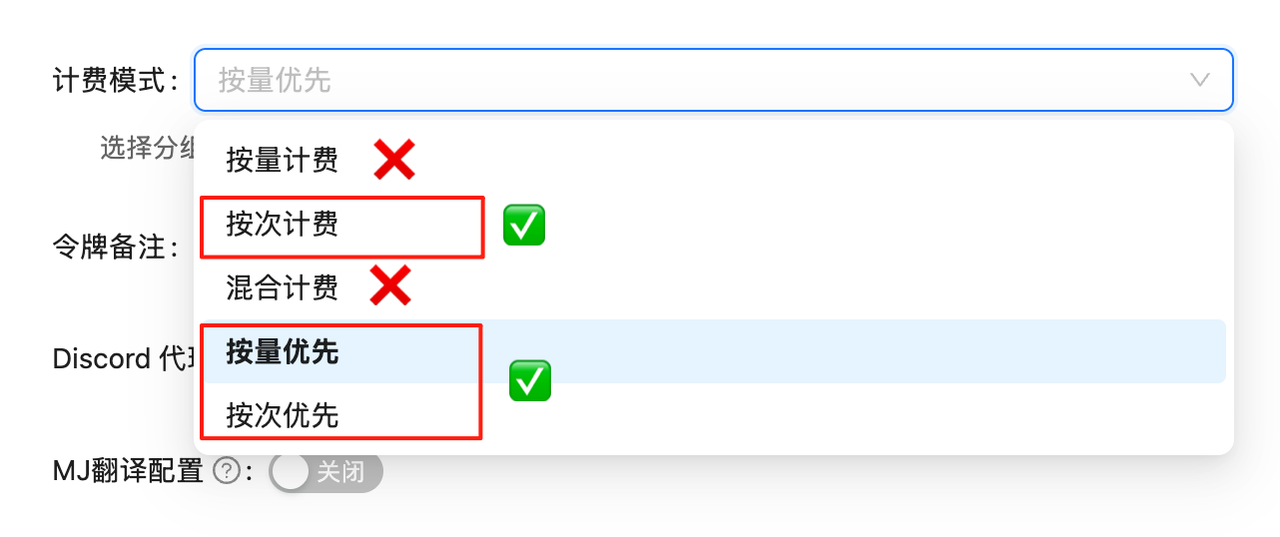 API calls will fail without proper billing configuration. Complete this setup first!
## Model Overview
**Nano Banana Pro Edit** (`gemini-3-pro-image`) is designed for scenarios requiring precise control and high-quality output. Unlike simple filters or patches, it understands complex natural language instructions and makes logical modifications to images.
### Core Capabilities
* **Precise Local Editing**: "Replace that cat with a dog wearing glasses, but keep the same pose"
* **Perfect Style Transfer**: "Transform this photo into cyberpunk-style oil painting with stronger lighting"
* **Multi-Image Creative Fusion**: "Combine these two images to generate a brand new poster"
* **4K HD Output**: Supports 2K/4K resolution output for edited results
## 🌟 Core Features
* **⚡ Fast Response**: \~10 seconds average for editing
* **💰 Cost-Controlled**: \$0.09/edit (current price shown in console)
* **🔄 Dual Compatibility**: Supports OpenAI SDK and Google native formats
* **📐 Flexible Sizes**: Google native format supports 14 aspect ratios
* **🖼️ High Resolution**: Supports 1K, 2K, 4K resolution output
* **🧠 Thinking Mode**: Built-in reasoning ability, understands complex editing instructions
* **🌐 Search Grounding**: Supports combining real-time search data for editing
* **🎨 Multi-Image Reference**: Supports up to 14 reference images for complex compositing
* **📦 Base64 Output**: Returns base64 encoded image data directly
* **🔗 URL Direct Input**: Google native format supports direct image URL input (overseas accessible required), no Base64 encoding needed
## 🔀 Two API Modes
| Feature | OpenAI Compatible Mode | Google Native Format |
| ----------------- | ----------------------- | --------------------------------------------------- |
| **Endpoint** | `/v1/chat/completions` | `/v1beta/models/gemini-3-pro-image:generateContent` |
| **Output Size** | Default ratio | 14 aspect ratios |
| **Resolution** | Fixed 1K | 1K/2K/4K |
| **Multi-Image** | ✅ Supported | ✅ Supported (up to 14) |
| **Compatibility** | Perfect with OpenAI SDK | Requires native calls |
| **Return Format** | Base64 | Base64 |
| **Image Input** | URL or Base64 | URL (fileData) or Base64 (inline\_data) |
💡 **How to Choose?**
* For default ratio images, use **OpenAI Compatible Mode** - simple and fast
* For custom aspect ratios (like 16:9, 9:16) or high-res (2K/4K), use **Google Native Format**
## 📋 Model Comparison
### Comparison with Other Editing Models
| Model | Model ID | Billing | LaoZhang Price | Official Price | Savings | Resolution | Speed |
| ---------------------- | ----------------------------- | ------- | -------------- | ----------------------------- | ----------------------- | ------------- | ------------------ |
| **Nano Banana Pro** | `gemini-3-pro-image` | Per-use | \$0.09/edit | \$0.134 (1K/2K) / \$0.24 (4K) | About 32.8%–62.5% lower | 1K/2K/4K | \~10s |
| **Nano Banana 2** | `gemini-3.1-flash-image` | Per-use | \$0.055/edit | \$0.045–\$0.151 | Compare by resolution | 0.5K/1K/2K/4K | \~10s |
| **Nano Banana 2 Lite** | `gemini-3.1-flash-lite-image` | Per-use | \$0.025/edit | \$0.0336 (1K) | About 25.6% lower | 1K | Low-latency target |
| **Nano Banana** | `gemini-2.5-flash-image` | Per-use | \$0.025/edit | \$0.039/edit | About 35.9% lower | 1K (fixed) | \~10s |
| **GPT-4o Edit** | `gpt-4o` | Token | - | - | - | - | \~20s |
| **DALL·E 2 Edit** | `dall-e-2` | Per-use | - | \$0.018/image | - | Fixed | Slower |
### Pro / Banana 2 / Standard Detailed Comparison
| Feature | Nano Banana Pro | Nano Banana 2 | Nano Banana |
| -------------------- | ---------------------------------------- | ------------------------------ | --------------------------------- |
| **Model** | `gemini-3-pro-image` | `gemini-3.1-flash-image` | `gemini-2.5-flash-image` |
| **Technology** | Gemini 3 | Gemini 3.1 Flash | Gemini 2.5 |
| **Resolution** | 1K/2K/4K | 1K/2K/4K | 1K (fixed) |
| **Price** | \$0.09/edit | \$0.055/edit | \$0.025/edit |
| **Thinking Mode** | ✅ Yes | ✅ Yes | ❌ No |
| **Search Grounding** | ✅ Yes | ✅ Yes | ❌ No |
| **Multi-Image** | Up to 14 | Up to 14 | Up to 3 |
| **Speed** | \~10s | \~10s | \~10s |
| **Best For** | Professional design, complex compositing | Best value, advanced daily use | Quick edits, simple modifications |
💰 **Pricing Details**
* **Nano Banana Pro**: LaoZhang API is currently \$0.09/edit; Google Standard is currently \$0.134 at 1K/2K or \$0.24 at 4K
* **Transparent billing**: Review charges in call logs and confirm billing in the console
## 🚀 Quick Start
### Prerequisites
Login to [LaoZhang API Token Management](https://api2.laozhang.ai/token) and create a **pay-per-use** type token
API calls will fail without proper billing configuration. Complete this setup first!
## Model Overview
**Nano Banana Pro Edit** (`gemini-3-pro-image`) is designed for scenarios requiring precise control and high-quality output. Unlike simple filters or patches, it understands complex natural language instructions and makes logical modifications to images.
### Core Capabilities
* **Precise Local Editing**: "Replace that cat with a dog wearing glasses, but keep the same pose"
* **Perfect Style Transfer**: "Transform this photo into cyberpunk-style oil painting with stronger lighting"
* **Multi-Image Creative Fusion**: "Combine these two images to generate a brand new poster"
* **4K HD Output**: Supports 2K/4K resolution output for edited results
## 🌟 Core Features
* **⚡ Fast Response**: \~10 seconds average for editing
* **💰 Cost-Controlled**: \$0.09/edit (current price shown in console)
* **🔄 Dual Compatibility**: Supports OpenAI SDK and Google native formats
* **📐 Flexible Sizes**: Google native format supports 14 aspect ratios
* **🖼️ High Resolution**: Supports 1K, 2K, 4K resolution output
* **🧠 Thinking Mode**: Built-in reasoning ability, understands complex editing instructions
* **🌐 Search Grounding**: Supports combining real-time search data for editing
* **🎨 Multi-Image Reference**: Supports up to 14 reference images for complex compositing
* **📦 Base64 Output**: Returns base64 encoded image data directly
* **🔗 URL Direct Input**: Google native format supports direct image URL input (overseas accessible required), no Base64 encoding needed
## 🔀 Two API Modes
| Feature | OpenAI Compatible Mode | Google Native Format |
| ----------------- | ----------------------- | --------------------------------------------------- |
| **Endpoint** | `/v1/chat/completions` | `/v1beta/models/gemini-3-pro-image:generateContent` |
| **Output Size** | Default ratio | 14 aspect ratios |
| **Resolution** | Fixed 1K | 1K/2K/4K |
| **Multi-Image** | ✅ Supported | ✅ Supported (up to 14) |
| **Compatibility** | Perfect with OpenAI SDK | Requires native calls |
| **Return Format** | Base64 | Base64 |
| **Image Input** | URL or Base64 | URL (fileData) or Base64 (inline\_data) |
💡 **How to Choose?**
* For default ratio images, use **OpenAI Compatible Mode** - simple and fast
* For custom aspect ratios (like 16:9, 9:16) or high-res (2K/4K), use **Google Native Format**
## 📋 Model Comparison
### Comparison with Other Editing Models
| Model | Model ID | Billing | LaoZhang Price | Official Price | Savings | Resolution | Speed |
| ---------------------- | ----------------------------- | ------- | -------------- | ----------------------------- | ----------------------- | ------------- | ------------------ |
| **Nano Banana Pro** | `gemini-3-pro-image` | Per-use | \$0.09/edit | \$0.134 (1K/2K) / \$0.24 (4K) | About 32.8%–62.5% lower | 1K/2K/4K | \~10s |
| **Nano Banana 2** | `gemini-3.1-flash-image` | Per-use | \$0.055/edit | \$0.045–\$0.151 | Compare by resolution | 0.5K/1K/2K/4K | \~10s |
| **Nano Banana 2 Lite** | `gemini-3.1-flash-lite-image` | Per-use | \$0.025/edit | \$0.0336 (1K) | About 25.6% lower | 1K | Low-latency target |
| **Nano Banana** | `gemini-2.5-flash-image` | Per-use | \$0.025/edit | \$0.039/edit | About 35.9% lower | 1K (fixed) | \~10s |
| **GPT-4o Edit** | `gpt-4o` | Token | - | - | - | - | \~20s |
| **DALL·E 2 Edit** | `dall-e-2` | Per-use | - | \$0.018/image | - | Fixed | Slower |
### Pro / Banana 2 / Standard Detailed Comparison
| Feature | Nano Banana Pro | Nano Banana 2 | Nano Banana |
| -------------------- | ---------------------------------------- | ------------------------------ | --------------------------------- |
| **Model** | `gemini-3-pro-image` | `gemini-3.1-flash-image` | `gemini-2.5-flash-image` |
| **Technology** | Gemini 3 | Gemini 3.1 Flash | Gemini 2.5 |
| **Resolution** | 1K/2K/4K | 1K/2K/4K | 1K (fixed) |
| **Price** | \$0.09/edit | \$0.055/edit | \$0.025/edit |
| **Thinking Mode** | ✅ Yes | ✅ Yes | ❌ No |
| **Search Grounding** | ✅ Yes | ✅ Yes | ❌ No |
| **Multi-Image** | Up to 14 | Up to 14 | Up to 3 |
| **Speed** | \~10s | \~10s | \~10s |
| **Best For** | Professional design, complex compositing | Best value, advanced daily use | Quick edits, simple modifications |
💰 **Pricing Details**
* **Nano Banana Pro**: LaoZhang API is currently \$0.09/edit; Google Standard is currently \$0.134 at 1K/2K or \$0.24 at 4K
* **Transparent billing**: Review charges in call logs and confirm billing in the console
## 🚀 Quick Start
### Prerequisites
Login to [LaoZhang API Token Management](https://api2.laozhang.ai/token) and create a **pay-per-use** type token
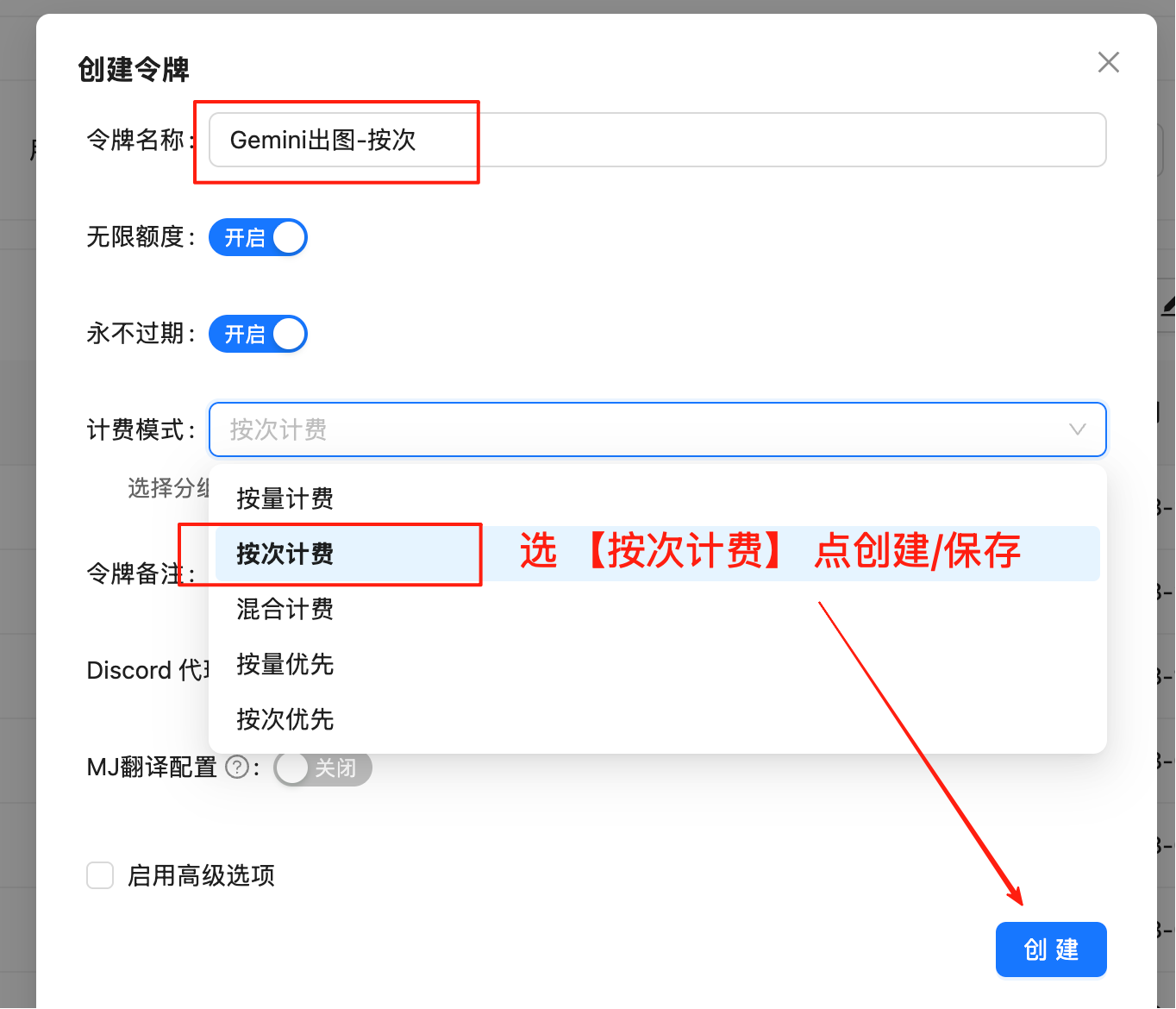 **Important**: Must select "Pay-per-use" type
Copy the generated token in format `sk-xxxxxx`
## Method 1: OpenAI Compatible Mode
### Single Image Edit - Curl
```bash theme={null}
curl -X POST "https://api2.laozhang.ai/v1/chat/completions" \
-H "x-goog-api-key: sk-YOUR_API_KEY" \
-H "Content-Type: application/json" \
-d '{
"model": "gemini-3-pro-image",
"stream": false,
"messages": [
{
"role": "user",
"content": [
{
"type": "text",
"text": "Add a futuristic neon halo above the person head"
},
{
"type": "image_url",
"image_url": {
"url": "https://example.com/your-image.jpg"
}
}
]
}
]
}'
```
### Single Image Edit - Python SDK
```python theme={null}
from openai import OpenAI
import base64
import re
client = OpenAI(
api_key="sk-YOUR_API_KEY",
base_url="https://api2.laozhang.ai/v1"
)
response = client.chat.completions.create(
model="gemini-3-pro-image",
messages=[
{
"role": "user",
"content": [
{
"type": "text",
"text": "Add a cute wizard hat on this cat's head"
},
{
"type": "image_url",
"image_url": {
"url": "https://example.com/your-image.jpg"
}
}
]
}
]
)
# Extract and save image
content = response.choices[0].message.content
match = re.search(r'!\[.*?\]\((data:image/png;base64,.*?)\)', content)
if match:
base64_data = match.group(1).split(',')[1]
image_data = base64.b64decode(base64_data)
with open('edited.png', 'wb') as f:
f.write(image_data)
print("✅ Edited image saved: edited.png")
```
### Multi-Image Compositing - Python SDK
```python theme={null}
from openai import OpenAI
import base64
import re
client = OpenAI(
api_key="sk-YOUR_API_KEY",
base_url="https://api2.laozhang.ai/v1"
)
response = client.chat.completions.create(
model="gemini-3-pro-image",
messages=[
{
"role": "user",
"content": [
{
"type": "text",
"text": "Combine the style of image A with the content of image B"
},
{
"type": "image_url",
"image_url": {"url": "https://example.com/style.jpg"}
},
{
"type": "image_url",
"image_url": {"url": "https://example.com/content.jpg"}
}
]
}
]
)
# Extract and save image
content = response.choices[0].message.content
match = re.search(r'!\[.*?\]\((data:image/png;base64,.*?)\)', content)
if match:
base64_data = match.group(1).split(',')[1]
image_data = base64.b64decode(base64_data)
with open('merged.png', 'wb') as f:
f.write(image_data)
print("✅ Merged image saved: merged.png")
```
## Method 2: Google Native Format (Custom Aspect Ratio + 4K)
### Authentication Methods
Google native format supports three authentication methods:
```bash theme={null}
# Method 1: URL parameter (recommended, simplest)
https://api2.laozhang.ai/v1beta/models/gemini-3-pro-image:generateContent?key=sk-YOUR_API_KEY
# Method 2: Authorization Bearer Header
-H "Authorization: Bearer sk-YOUR_API_KEY"
# Method 3: x-goog-api-key Header
-H "x-goog-api-key: sk-YOUR_API_KEY"
```
💡 All three methods work the same. Choose whichever you prefer.
### Supported Resolutions
| Aspect Ratio | 1K Resolution | 2K Resolution | 4K Resolution |
| ------------ | ------------- | ------------- | ------------- |
| **1:1** | 1024×1024 | 2048×2048 | 4096×4096 |
| **16:9** | 1376×768 | 2752×1536 | 5504×3072 |
| **9:16** | 768×1376 | 1536×2752 | 3072×5504 |
| **4:3** | 1200×896 | 2400×1792 | 4800×3584 |
| **3:4** | 896×1200 | 1792×2400 | 3584×4800 |
💡 **How to Set Resolution**
Pass `"2K"` or `"4K"` in `generationConfig.imageConfig.imageSize`. Default is `"1K"` if not specified.
### Image Input Methods
Google native format supports two image input methods:
💡 **Two Methods Comparison**
* **`inline_data`**: Pass Base64 encoded data, suitable for local images
* **`fileData`**: Pass image URL directly, more concise (recommended for online images)
⚠️ **URL Method Limitations**
When using `fileData.fileUri` to pass image URL, the following conditions must be met:
* Image URL must be **directly accessible from overseas public network**
* Image server **must not have anti-crawling mechanisms** (e.g., Cloudflare verification, CAPTCHA, User-Agent detection)
* For images with access restrictions, use `inline_data` method (download first, then convert to Base64)
### 4K HD Editing - Curl (Base64 Method)
```bash theme={null}
curl -X POST "https://api2.laozhang.ai/v1beta/models/gemini-3-pro-image:generateContent" \
-H "x-goog-api-key: sk-YOUR_API_KEY" \
-H "Content-Type: application/json" \
-d '{
"contents": [{
"parts": [
{"text": "Transform this image into a cyberpunk style with neon lights"},
{"inline_data": {"mime_type": "image/jpeg", "data": "BASE64_IMAGE_DATA_HERE"}}
]
}],
"generationConfig": {
"responseModalities": ["IMAGE"],
"imageConfig": {
"aspectRatio": "16:9",
"imageSize": "4K"
}
}
}'
```
### 4K HD Editing - Curl (URL Method)
Use `fileData.fileUri` to pass online image URL directly, no Base64 conversion needed:
```bash theme={null}
curl -X POST "https://api2.laozhang.ai/v1beta/models/gemini-3-pro-image:generateContent" \
-H "x-goog-api-key: sk-YOUR_API_KEY" \
-H "Content-Type: application/json" \
-d '{
"contents": [{
"parts": [
{
"fileData": {
"fileUri": "https://example.com/your-image.png",
"mimeType": "image/png"
}
},
{"text": "Add five cute dogs to this image"}
],
"role": "user"
}],
"generationConfig": {
"responseModalities": ["IMAGE"],
"imageConfig": {
"aspectRatio": "16:9",
"imageSize": "4K"
}
}
}'
```
💡 **URL Method Key Points**
* Use `fileData.fileUri` instead of `inline_data.data`
* Must specify `mimeType` (e.g., `image/png`, `image/jpeg`)
* Optionally add `role: "user"` to specify the role
* Image URL must be directly accessible from overseas public network
### Python Code Examples
💡 **Progressive Examples**
Example 1 edits image → Example 2 transforms its style → Example 3 fuses both images. Clear progression!
```python theme={null}
import requests
import base64
# ========== Configuration ==========
API_KEY = "sk-YOUR_API_KEY"
API_URL = "https://api2.laozhang.ai/v1beta/models/gemini-3-pro-image:generateContent"
INPUT_IMAGE = "cat.jpg"
PROMPT = "Add a cute wizard hat on this cat's head"
ASPECT_RATIO = "1:1"
IMAGE_SIZE = "2K" # 1K, 2K, 4K
# ============================
# Read and encode image
with open(INPUT_IMAGE, "rb") as f:
image_b64 = base64.b64encode(f.read()).decode("utf-8")
headers = {"x-goog-api-key": API_KEY, "Content-Type": "application/json"}
payload = {
"contents": [{
"parts": [
{"text": PROMPT},
{"inline_data": {"mime_type": "image/jpeg", "data": image_b64}}
]
}],
"generationConfig": {
"responseModalities": ["IMAGE"],
"imageConfig": {
"aspectRatio": ASPECT_RATIO,
"imageSize": IMAGE_SIZE
}
}
}
response = requests.post(API_URL, headers=headers, json=payload, timeout=180)
result = response.json()
# Save image
output_data = result["candidates"][0]["content"]["parts"][0]["inlineData"]["data"]
with open("output.png", "wb") as f:
f.write(base64.b64decode(output_data))
print("✅ Image saved: output.png")
```
```python theme={null}
import requests
import base64
# ========== Configuration ==========
API_KEY = "sk-YOUR_API_KEY"
API_URL = "https://api2.laozhang.ai/v1beta/models/gemini-3-pro-image:generateContent"
INPUT_IMAGE = "output.png" # Use image from Example 1
PROMPT = "Transform this cat into Van Gogh Starry Night style oil painting"
ASPECT_RATIO = "1:1"
IMAGE_SIZE = "2K"
# ============================
# Read and encode image
with open(INPUT_IMAGE, "rb") as f:
image_b64 = base64.b64encode(f.read()).decode("utf-8")
headers = {"x-goog-api-key": API_KEY, "Content-Type": "application/json"}
payload = {
"contents": [{
"parts": [
{"text": PROMPT},
{"inline_data": {"mime_type": "image/png", "data": image_b64}}
]
}],
"generationConfig": {
"responseModalities": ["IMAGE"],
"imageConfig": {
"aspectRatio": ASPECT_RATIO,
"imageSize": IMAGE_SIZE
}
}
}
response = requests.post(API_URL, headers=headers, json=payload, timeout=180)
result = response.json()
# Save image
output_data = result["candidates"][0]["content"]["parts"][0]["inlineData"]["data"]
with open("output_styled.png", "wb") as f:
f.write(base64.b64decode(output_data))
print("✅ Image saved: output_styled.png")
```
```python theme={null}
import requests
import base64
# ========== Configuration ==========
API_KEY = "sk-YOUR_API_KEY"
API_URL = "https://api2.laozhang.ai/v1beta/models/gemini-3-pro-image:generateContent"
# Use the two images from Example 1 and Example 2
IMAGES = ["output.png", "output_styled.png"]
PROMPT = "Combine these two cat images into a single artistic composition"
ASPECT_RATIO = "16:9"
IMAGE_SIZE = "2K"
# ============================
# Build parts: text + multiple images
parts = [{"text": PROMPT}]
for img_path in IMAGES:
with open(img_path, "rb") as f:
img_b64 = base64.b64encode(f.read()).decode("utf-8")
parts.append({"inline_data": {"mime_type": "image/png", "data": img_b64}})
headers = {"x-goog-api-key": API_KEY, "Content-Type": "application/json"}
payload = {
"contents": [{"parts": parts}],
"generationConfig": {
"responseModalities": ["IMAGE"],
"imageConfig": {
"aspectRatio": ASPECT_RATIO,
"imageSize": IMAGE_SIZE
}
}
}
response = requests.post(API_URL, headers=headers, json=payload, timeout=180)
result = response.json()
# Save image
output_data = result["candidates"][0]["content"]["parts"][0]["inlineData"]["data"]
with open("output_mixed.png", "wb") as f:
f.write(base64.b64decode(output_data))
print("✅ Image saved: output_mixed.png")
```
```python theme={null}
import requests
import base64
# ========== Configuration ==========
API_KEY = "sk-YOUR_API_KEY"
API_URL = "https://api2.laozhang.ai/v1beta/models/gemini-3-pro-image:generateContent"
# Use online image URL (must be accessible from overseas)
IMAGE_URL = "https://example.com/your-image.png"
PROMPT = "Add a beautiful sunset in the background"
ASPECT_RATIO = "16:9"
IMAGE_SIZE = "4K"
# ============================
headers = {"x-goog-api-key": API_KEY, "Content-Type": "application/json"}
# Use fileData.fileUri method - no need to download and encode image
payload = {
"contents": [{
"parts": [
{
"fileData": {
"fileUri": IMAGE_URL,
"mimeType": "image/png"
}
},
{"text": PROMPT}
],
"role": "user"
}],
"generationConfig": {
"responseModalities": ["IMAGE"],
"imageConfig": {
"aspectRatio": ASPECT_RATIO,
"imageSize": IMAGE_SIZE
}
}
}
response = requests.post(API_URL, headers=headers, json=payload, timeout=180)
result = response.json()
# Save image
output_data = result["candidates"][0]["content"]["parts"][0]["inlineData"]["data"]
with open("output_url.png", "wb") as f:
f.write(base64.b64decode(output_data))
print("✅ Image saved: output_url.png")
```
```python theme={null}
#!/usr/bin/env python3
# -*- coding: utf-8 -*-
"""
Nano Banana Pro Image Editing Tool - Python Version
Upload local image + text description, generate new image, supports custom aspect ratio and resolution
"""
import requests
import base64
import os
import datetime
import mimetypes
from typing import Optional, Tuple, List
class NanaBananaProEditor:
"""Nano Banana Pro Image Editor"""
SUPPORTED_ASPECT_RATIOS = [
"21:9", "16:9", "4:3", "3:2", "1:1",
"9:16", "3:4", "2:3", "5:4", "4:5"
]
SUPPORTED_SIZES = ["1K", "2K", "4K"]
def __init__(self, api_key: str):
self.api_key = api_key
self.api_url = "https://api2.laozhang.ai/v1beta/models/gemini-3-pro-image:generateContent"
self.headers = {
"Content-Type": "application/json",
"x-goog-api-key": api_key
}
def edit_image(self, image_path: str, prompt: str,
aspect_ratio: str = "1:1",
image_size: str = "2K",
output_dir: str = ".") -> Tuple[bool, str]:
"""
Edit a single image
Args:
image_path: Input image path
prompt: Edit description
aspect_ratio: Aspect ratio
image_size: Resolution (1K, 2K, 4K)
output_dir: Save directory
Returns:
(success, result message)
"""
print(f"🚀 Starting image edit...")
print(f"📁 Input image: {image_path}")
print(f"📝 Edit prompt: {prompt}")
print(f"📐 Aspect ratio: {aspect_ratio}")
print(f"🖼️ Resolution: {image_size}")
if not os.path.exists(image_path):
return False, f"Image file not found: {image_path}"
if aspect_ratio not in self.SUPPORTED_ASPECT_RATIOS:
return False, f"Unsupported aspect ratio {aspect_ratio}"
if image_size not in self.SUPPORTED_SIZES:
return False, f"Unsupported resolution {image_size}"
# Read and encode image
try:
with open(image_path, 'rb') as f:
image_data = f.read()
image_base64 = base64.b64encode(image_data).decode('utf-8')
mime_type, _ = mimetypes.guess_type(image_path)
if not mime_type or not mime_type.startswith('image/'):
mime_type = 'image/jpeg'
except Exception as e:
return False, f"Failed to read image: {str(e)}"
# Generate output filename
timestamp = datetime.datetime.now().strftime("%Y%m%d_%H%M%S")
output_file = os.path.join(output_dir, f"edited_{timestamp}.png")
try:
payload = {
"contents": [{
"parts": [
{"text": prompt},
{"inline_data": {"mime_type": mime_type, "data": image_base64}}
]
}],
"generationConfig": {
"responseModalities": ["IMAGE"],
"imageConfig": {
"aspectRatio": aspect_ratio,
"imageSize": image_size
}
}
}
print("📡 Sending request to API...")
response = requests.post(self.api_url, headers=self.headers, json=payload, timeout=180)
if response.status_code != 200:
return False, f"API request failed, status code: {response.status_code}"
result = response.json()
output_image_data = result["candidates"][0]["content"]["parts"][0]["inlineData"]["data"]
print("💾 Saving image...")
decoded_data = base64.b64decode(output_image_data)
with open(output_file, 'wb') as f:
f.write(decoded_data)
file_size = len(decoded_data) / 1024
print(f"✅ Image saved: {output_file}")
print(f"📊 File size: {file_size:.2f} KB")
return True, f"Successfully saved image: {output_file}"
except Exception as e:
return False, f"Error: {str(e)}"
def merge_images(self, image_paths: List[str], prompt: str,
aspect_ratio: str = "16:9",
image_size: str = "2K",
output_dir: str = ".") -> Tuple[bool, str]:
"""
Merge multiple images
Args:
image_paths: List of input image paths
prompt: Merge description
aspect_ratio: Aspect ratio
image_size: Resolution
output_dir: Save directory
Returns:
(success, result message)
"""
print(f"🚀 Starting to merge {len(image_paths)} images...")
parts = [{"text": prompt}]
for img_path in image_paths:
if not os.path.exists(img_path):
return False, f"Image file not found: {img_path}"
with open(img_path, 'rb') as f:
img_data = f.read()
img_b64 = base64.b64encode(img_data).decode('utf-8')
mime_type, _ = mimetypes.guess_type(img_path)
if not mime_type:
mime_type = 'image/jpeg'
parts.append({"inline_data": {"mime_type": mime_type, "data": img_b64}})
timestamp = datetime.datetime.now().strftime("%Y%m%d_%H%M%S")
output_file = os.path.join(output_dir, f"merged_{timestamp}.png")
try:
payload = {
"contents": [{"parts": parts}],
"generationConfig": {
"responseModalities": ["IMAGE"],
"imageConfig": {
"aspectRatio": aspect_ratio,
"imageSize": image_size
}
}
}
print("📡 Sending request to API...")
response = requests.post(self.api_url, headers=self.headers, json=payload, timeout=180)
if response.status_code != 200:
return False, f"API request failed, status code: {response.status_code}"
result = response.json()
output_image_data = result["candidates"][0]["content"]["parts"][0]["inlineData"]["data"]
print("💾 Saving image...")
decoded_data = base64.b64decode(output_image_data)
with open(output_file, 'wb') as f:
f.write(decoded_data)
print(f"✅ Image saved: {output_file}")
return True, f"Successfully saved image: {output_file}"
except Exception as e:
return False, f"Error: {str(e)}"
def main():
"""Main function - Usage examples"""
API_KEY = "sk-YOUR_API_KEY"
editor = NanaBananaProEditor(API_KEY)
# Example 1: Single image edit
success, message = editor.edit_image(
image_path="./input.jpg",
prompt="Add a rainbow in the sky",
aspect_ratio="16:9",
image_size="2K"
)
print(message)
# Example 2: Multi-image merge
success, message = editor.merge_images(
image_paths=["./cat.jpg", "./dog.jpg"],
prompt="Combine these two pets into one happy family portrait",
aspect_ratio="1:1",
image_size="2K"
)
print(message)
if __name__ == "__main__":
main()
```
## 🎯 Editing Scenarios
### 1. Single Image Edit - Add Elements
```python theme={null}
def add_element_to_image(image_url, element_description):
"""Add new elements to image"""
headers = {
"x-goog-api-key": API_KEY,
"Content-Type": "application/json"
}
data = {
"model": "gemini-3-pro-image",
"stream": False,
"messages": [{
"role": "user",
"content": [
{"type": "text", "text": f"Add {element_description} to this image"},
{"type": "image_url", "image_url": {"url": image_url}}
]
}]
}
response = requests.post(API_URL, headers=headers, json=data)
return extract_base64_from_response(response.json())
# Usage example
result = add_element_to_image(
"https://example.com/landscape.jpg",
"a rainbow in the sky"
)
```
### 2. Style Transfer
```python theme={null}
def style_transfer(image_url, style_description):
"""Image style transfer"""
headers = {
"x-goog-api-key": API_KEY,
"Content-Type": "application/json"
}
data = {
"model": "gemini-3-pro-image",
"stream": False,
"messages": [{
"role": "user",
"content": [
{"type": "text", "text": f"Transform this image into {style_description} style"},
{"type": "image_url", "image_url": {"url": image_url}}
]
}]
}
response = requests.post(API_URL, headers=headers, json=data)
return extract_base64_from_response(response.json())
# Usage example
result = style_transfer(
"https://example.com/photo.jpg",
"Van Gogh oil painting"
)
```
### 3. Multi-Image Compositing
```python theme={null}
def creative_merge(image_urls, merge_instruction):
"""Creatively merge multiple images"""
content = [{"type": "text", "text": merge_instruction}]
for url in image_urls:
content.append({
"type": "image_url",
"image_url": {"url": url}
})
headers = {
"x-goog-api-key": API_KEY,
"Content-Type": "application/json"
}
data = {
"model": "gemini-3-pro-image",
"stream": False,
"messages": [{"role": "user", "content": content}]
}
response = requests.post(API_URL, headers=headers, json=data)
return extract_base64_from_response(response.json())
# Usage example
images = ["https://example.com/cat.jpg", "https://example.com/background.jpg"]
result = creative_merge(images, "Naturally blend the cat into the background")
```
## 💡 Best Practices
### Edit Instruction Optimization
```python theme={null}
# ❌ Vague instruction
instruction = "edit the image"
# ✅ Clear and specific instruction
instruction = """
1. Add a bright moon in the upper right corner
2. Adjust overall color tone to warm tones
3. Add some firefly light effects
4. Keep the main subject unchanged
"""
```
### Multi-Image Processing Strategy
```python theme={null}
def smart_multi_image_edit(images, instruction):
"""Smart multi-image editing"""
if len(images) == 1:
prompt = f"Edit this image: {instruction}"
elif len(images) == 2:
prompt = f"Combine these two images creatively: {instruction}"
else:
prompt = f"Process these {len(images)} images together: {instruction}"
# Build content...
return send_edit_request(content)
```
## ❓ FAQ
| Feature | Nano Banana Pro | Nano Banana |
| -------------------- | ---------------------------------------- | --------------------------------- |
| **Resolution** | 1K/2K/4K | 1K (fixed) |
| **Thinking Mode** | ✅ Yes | ❌ No |
| **Search Grounding** | ✅ Yes | ❌ No |
| **Multi-Image** | Up to 14 | Up to 3 |
| **Price** | \$0.09/edit | \$0.025/edit |
| **Best For** | Professional design, complex compositing | Quick edits, simple modifications |
Both Nano Banana Pro and Nano Banana 2 support 4K. This page uses Pro through the Gemini-native format with an `imageSize` parameter:
```json theme={null}
{
"generationConfig": {
"responseModalities": ["IMAGE"],
"imageConfig": {
"aspectRatio": "16:9",
"imageSize": "4K"
}
}
}
```
**Important**: Must use uppercase "K" (1K, 2K, 4K).
Common image formats are supported:
* JPG/JPEG
* PNG
* WebP
* GIF (static)
JPG or PNG recommended for best results.
* **Recommended size**: Single image ≤ 5MB
* **Maximum size**: ≤ 10MB
* Larger images increase processing time, recommend compressing before upload
* **Nano Banana Pro**: Up to 14 images
* **Nano Banana**: Up to 3 images
* Too many images affects quality and processing time, recommend ≤ 4
| Model | LaoZhang API | Google Standard | Notes |
| ------------------- | ------------ | -------------------------------- | --------------------------------- |
| **Nano Banana Pro** | \$0.09/edit | \$0.134 at 1K/2K or \$0.24 at 4K | Google price varies by resolution |
| **Nano Banana** | \$0.025/edit | \$0.039 at 1K | Legacy 1K route |
Confirm current pricing and final charges in the LaoZhang API console.
**Perfectly supported!** Gemini 3 Pro has top-tier multilingual understanding. You can describe editing requirements in Chinese directly.
1. **Detailed description**: Provide specific editing details
2. **Step by step**: Describe complex edits in multiple steps
3. **Reference style**: Specify art style
4. **Keep subject**: Clearly state what needs to be preserved
Google native format supports two image input methods:
**1. URL Method (`fileData.fileUri`)** - More concise
```json theme={null}
{
"fileData": {
"fileUri": "https://example.com/image.png",
"mimeType": "image/png"
}
}
```
**2. Base64 Method (`inline_data`)** - More universal
```json theme={null}
{
"inline_data": {
"mime_type": "image/png",
"data": "BASE64_ENCODED_DATA"
}
}
```
**⚠️ URL Method Limitations:**
* Image URL must be **directly accessible from overseas public network**
* Image server **must not have anti-crawling mechanisms** (Cloudflare verification, CAPTCHA, etc.)
* For images with access restrictions, use Base64 method
**Recommended Scenarios:**
* Images hosted on AWS S3, Google Cloud Storage, Cloudinary, etc. → Use URL
* Images on restricted networks or with access restrictions → Use Base64
## 🎯 Common Use Cases
1. **E-commerce Model Swap**: Upload clothing and model photos, generate outfit effects
2. **Interior Design**: Upload raw room photos, generate decorated results via prompt
3. **Game Assets**: Quickly modify game icons or character appearances
4. **Social Media**: Transform portrait photos into various art styles
5. **Product Display**: Place products into different scene backgrounds
6. **Creative Posters**: Fuse multiple assets to generate poster designs
## 🔗 Related Resources
Learn how to generate images from text with Nano Banana Pro
More affordable Nano Banana Standard editing version
Create and manage your API tokens
View detailed pricing and billing information
***
## 📝 Changelog
**🔗 New fileData.fileUri Method**
* Support direct online image URL input, no download and Base64 encoding needed
* Added Curl and Python code examples
* Note: Image URL must be accessible from overseas public network without anti-crawling
* Added related FAQ
**🚀 Nano Banana Pro Edit Dedicated Page**
* Split from combined documentation into dedicated Pro version
* Complete 4K resolution editing guide
* Detailed multi-image compositing instructions
* Complete code examples and best practices
* Comparison with Nano Banana Standard
**Important**: Must select "Pay-per-use" type
Copy the generated token in format `sk-xxxxxx`
## Method 1: OpenAI Compatible Mode
### Single Image Edit - Curl
```bash theme={null}
curl -X POST "https://api2.laozhang.ai/v1/chat/completions" \
-H "x-goog-api-key: sk-YOUR_API_KEY" \
-H "Content-Type: application/json" \
-d '{
"model": "gemini-3-pro-image",
"stream": false,
"messages": [
{
"role": "user",
"content": [
{
"type": "text",
"text": "Add a futuristic neon halo above the person head"
},
{
"type": "image_url",
"image_url": {
"url": "https://example.com/your-image.jpg"
}
}
]
}
]
}'
```
### Single Image Edit - Python SDK
```python theme={null}
from openai import OpenAI
import base64
import re
client = OpenAI(
api_key="sk-YOUR_API_KEY",
base_url="https://api2.laozhang.ai/v1"
)
response = client.chat.completions.create(
model="gemini-3-pro-image",
messages=[
{
"role": "user",
"content": [
{
"type": "text",
"text": "Add a cute wizard hat on this cat's head"
},
{
"type": "image_url",
"image_url": {
"url": "https://example.com/your-image.jpg"
}
}
]
}
]
)
# Extract and save image
content = response.choices[0].message.content
match = re.search(r'!\[.*?\]\((data:image/png;base64,.*?)\)', content)
if match:
base64_data = match.group(1).split(',')[1]
image_data = base64.b64decode(base64_data)
with open('edited.png', 'wb') as f:
f.write(image_data)
print("✅ Edited image saved: edited.png")
```
### Multi-Image Compositing - Python SDK
```python theme={null}
from openai import OpenAI
import base64
import re
client = OpenAI(
api_key="sk-YOUR_API_KEY",
base_url="https://api2.laozhang.ai/v1"
)
response = client.chat.completions.create(
model="gemini-3-pro-image",
messages=[
{
"role": "user",
"content": [
{
"type": "text",
"text": "Combine the style of image A with the content of image B"
},
{
"type": "image_url",
"image_url": {"url": "https://example.com/style.jpg"}
},
{
"type": "image_url",
"image_url": {"url": "https://example.com/content.jpg"}
}
]
}
]
)
# Extract and save image
content = response.choices[0].message.content
match = re.search(r'!\[.*?\]\((data:image/png;base64,.*?)\)', content)
if match:
base64_data = match.group(1).split(',')[1]
image_data = base64.b64decode(base64_data)
with open('merged.png', 'wb') as f:
f.write(image_data)
print("✅ Merged image saved: merged.png")
```
## Method 2: Google Native Format (Custom Aspect Ratio + 4K)
### Authentication Methods
Google native format supports three authentication methods:
```bash theme={null}
# Method 1: URL parameter (recommended, simplest)
https://api2.laozhang.ai/v1beta/models/gemini-3-pro-image:generateContent?key=sk-YOUR_API_KEY
# Method 2: Authorization Bearer Header
-H "Authorization: Bearer sk-YOUR_API_KEY"
# Method 3: x-goog-api-key Header
-H "x-goog-api-key: sk-YOUR_API_KEY"
```
💡 All three methods work the same. Choose whichever you prefer.
### Supported Resolutions
| Aspect Ratio | 1K Resolution | 2K Resolution | 4K Resolution |
| ------------ | ------------- | ------------- | ------------- |
| **1:1** | 1024×1024 | 2048×2048 | 4096×4096 |
| **16:9** | 1376×768 | 2752×1536 | 5504×3072 |
| **9:16** | 768×1376 | 1536×2752 | 3072×5504 |
| **4:3** | 1200×896 | 2400×1792 | 4800×3584 |
| **3:4** | 896×1200 | 1792×2400 | 3584×4800 |
💡 **How to Set Resolution**
Pass `"2K"` or `"4K"` in `generationConfig.imageConfig.imageSize`. Default is `"1K"` if not specified.
### Image Input Methods
Google native format supports two image input methods:
💡 **Two Methods Comparison**
* **`inline_data`**: Pass Base64 encoded data, suitable for local images
* **`fileData`**: Pass image URL directly, more concise (recommended for online images)
⚠️ **URL Method Limitations**
When using `fileData.fileUri` to pass image URL, the following conditions must be met:
* Image URL must be **directly accessible from overseas public network**
* Image server **must not have anti-crawling mechanisms** (e.g., Cloudflare verification, CAPTCHA, User-Agent detection)
* For images with access restrictions, use `inline_data` method (download first, then convert to Base64)
### 4K HD Editing - Curl (Base64 Method)
```bash theme={null}
curl -X POST "https://api2.laozhang.ai/v1beta/models/gemini-3-pro-image:generateContent" \
-H "x-goog-api-key: sk-YOUR_API_KEY" \
-H "Content-Type: application/json" \
-d '{
"contents": [{
"parts": [
{"text": "Transform this image into a cyberpunk style with neon lights"},
{"inline_data": {"mime_type": "image/jpeg", "data": "BASE64_IMAGE_DATA_HERE"}}
]
}],
"generationConfig": {
"responseModalities": ["IMAGE"],
"imageConfig": {
"aspectRatio": "16:9",
"imageSize": "4K"
}
}
}'
```
### 4K HD Editing - Curl (URL Method)
Use `fileData.fileUri` to pass online image URL directly, no Base64 conversion needed:
```bash theme={null}
curl -X POST "https://api2.laozhang.ai/v1beta/models/gemini-3-pro-image:generateContent" \
-H "x-goog-api-key: sk-YOUR_API_KEY" \
-H "Content-Type: application/json" \
-d '{
"contents": [{
"parts": [
{
"fileData": {
"fileUri": "https://example.com/your-image.png",
"mimeType": "image/png"
}
},
{"text": "Add five cute dogs to this image"}
],
"role": "user"
}],
"generationConfig": {
"responseModalities": ["IMAGE"],
"imageConfig": {
"aspectRatio": "16:9",
"imageSize": "4K"
}
}
}'
```
💡 **URL Method Key Points**
* Use `fileData.fileUri` instead of `inline_data.data`
* Must specify `mimeType` (e.g., `image/png`, `image/jpeg`)
* Optionally add `role: "user"` to specify the role
* Image URL must be directly accessible from overseas public network
### Python Code Examples
💡 **Progressive Examples**
Example 1 edits image → Example 2 transforms its style → Example 3 fuses both images. Clear progression!
```python theme={null}
import requests
import base64
# ========== Configuration ==========
API_KEY = "sk-YOUR_API_KEY"
API_URL = "https://api2.laozhang.ai/v1beta/models/gemini-3-pro-image:generateContent"
INPUT_IMAGE = "cat.jpg"
PROMPT = "Add a cute wizard hat on this cat's head"
ASPECT_RATIO = "1:1"
IMAGE_SIZE = "2K" # 1K, 2K, 4K
# ============================
# Read and encode image
with open(INPUT_IMAGE, "rb") as f:
image_b64 = base64.b64encode(f.read()).decode("utf-8")
headers = {"x-goog-api-key": API_KEY, "Content-Type": "application/json"}
payload = {
"contents": [{
"parts": [
{"text": PROMPT},
{"inline_data": {"mime_type": "image/jpeg", "data": image_b64}}
]
}],
"generationConfig": {
"responseModalities": ["IMAGE"],
"imageConfig": {
"aspectRatio": ASPECT_RATIO,
"imageSize": IMAGE_SIZE
}
}
}
response = requests.post(API_URL, headers=headers, json=payload, timeout=180)
result = response.json()
# Save image
output_data = result["candidates"][0]["content"]["parts"][0]["inlineData"]["data"]
with open("output.png", "wb") as f:
f.write(base64.b64decode(output_data))
print("✅ Image saved: output.png")
```
```python theme={null}
import requests
import base64
# ========== Configuration ==========
API_KEY = "sk-YOUR_API_KEY"
API_URL = "https://api2.laozhang.ai/v1beta/models/gemini-3-pro-image:generateContent"
INPUT_IMAGE = "output.png" # Use image from Example 1
PROMPT = "Transform this cat into Van Gogh Starry Night style oil painting"
ASPECT_RATIO = "1:1"
IMAGE_SIZE = "2K"
# ============================
# Read and encode image
with open(INPUT_IMAGE, "rb") as f:
image_b64 = base64.b64encode(f.read()).decode("utf-8")
headers = {"x-goog-api-key": API_KEY, "Content-Type": "application/json"}
payload = {
"contents": [{
"parts": [
{"text": PROMPT},
{"inline_data": {"mime_type": "image/png", "data": image_b64}}
]
}],
"generationConfig": {
"responseModalities": ["IMAGE"],
"imageConfig": {
"aspectRatio": ASPECT_RATIO,
"imageSize": IMAGE_SIZE
}
}
}
response = requests.post(API_URL, headers=headers, json=payload, timeout=180)
result = response.json()
# Save image
output_data = result["candidates"][0]["content"]["parts"][0]["inlineData"]["data"]
with open("output_styled.png", "wb") as f:
f.write(base64.b64decode(output_data))
print("✅ Image saved: output_styled.png")
```
```python theme={null}
import requests
import base64
# ========== Configuration ==========
API_KEY = "sk-YOUR_API_KEY"
API_URL = "https://api2.laozhang.ai/v1beta/models/gemini-3-pro-image:generateContent"
# Use the two images from Example 1 and Example 2
IMAGES = ["output.png", "output_styled.png"]
PROMPT = "Combine these two cat images into a single artistic composition"
ASPECT_RATIO = "16:9"
IMAGE_SIZE = "2K"
# ============================
# Build parts: text + multiple images
parts = [{"text": PROMPT}]
for img_path in IMAGES:
with open(img_path, "rb") as f:
img_b64 = base64.b64encode(f.read()).decode("utf-8")
parts.append({"inline_data": {"mime_type": "image/png", "data": img_b64}})
headers = {"x-goog-api-key": API_KEY, "Content-Type": "application/json"}
payload = {
"contents": [{"parts": parts}],
"generationConfig": {
"responseModalities": ["IMAGE"],
"imageConfig": {
"aspectRatio": ASPECT_RATIO,
"imageSize": IMAGE_SIZE
}
}
}
response = requests.post(API_URL, headers=headers, json=payload, timeout=180)
result = response.json()
# Save image
output_data = result["candidates"][0]["content"]["parts"][0]["inlineData"]["data"]
with open("output_mixed.png", "wb") as f:
f.write(base64.b64decode(output_data))
print("✅ Image saved: output_mixed.png")
```
```python theme={null}
import requests
import base64
# ========== Configuration ==========
API_KEY = "sk-YOUR_API_KEY"
API_URL = "https://api2.laozhang.ai/v1beta/models/gemini-3-pro-image:generateContent"
# Use online image URL (must be accessible from overseas)
IMAGE_URL = "https://example.com/your-image.png"
PROMPT = "Add a beautiful sunset in the background"
ASPECT_RATIO = "16:9"
IMAGE_SIZE = "4K"
# ============================
headers = {"x-goog-api-key": API_KEY, "Content-Type": "application/json"}
# Use fileData.fileUri method - no need to download and encode image
payload = {
"contents": [{
"parts": [
{
"fileData": {
"fileUri": IMAGE_URL,
"mimeType": "image/png"
}
},
{"text": PROMPT}
],
"role": "user"
}],
"generationConfig": {
"responseModalities": ["IMAGE"],
"imageConfig": {
"aspectRatio": ASPECT_RATIO,
"imageSize": IMAGE_SIZE
}
}
}
response = requests.post(API_URL, headers=headers, json=payload, timeout=180)
result = response.json()
# Save image
output_data = result["candidates"][0]["content"]["parts"][0]["inlineData"]["data"]
with open("output_url.png", "wb") as f:
f.write(base64.b64decode(output_data))
print("✅ Image saved: output_url.png")
```
```python theme={null}
#!/usr/bin/env python3
# -*- coding: utf-8 -*-
"""
Nano Banana Pro Image Editing Tool - Python Version
Upload local image + text description, generate new image, supports custom aspect ratio and resolution
"""
import requests
import base64
import os
import datetime
import mimetypes
from typing import Optional, Tuple, List
class NanaBananaProEditor:
"""Nano Banana Pro Image Editor"""
SUPPORTED_ASPECT_RATIOS = [
"21:9", "16:9", "4:3", "3:2", "1:1",
"9:16", "3:4", "2:3", "5:4", "4:5"
]
SUPPORTED_SIZES = ["1K", "2K", "4K"]
def __init__(self, api_key: str):
self.api_key = api_key
self.api_url = "https://api2.laozhang.ai/v1beta/models/gemini-3-pro-image:generateContent"
self.headers = {
"Content-Type": "application/json",
"x-goog-api-key": api_key
}
def edit_image(self, image_path: str, prompt: str,
aspect_ratio: str = "1:1",
image_size: str = "2K",
output_dir: str = ".") -> Tuple[bool, str]:
"""
Edit a single image
Args:
image_path: Input image path
prompt: Edit description
aspect_ratio: Aspect ratio
image_size: Resolution (1K, 2K, 4K)
output_dir: Save directory
Returns:
(success, result message)
"""
print(f"🚀 Starting image edit...")
print(f"📁 Input image: {image_path}")
print(f"📝 Edit prompt: {prompt}")
print(f"📐 Aspect ratio: {aspect_ratio}")
print(f"🖼️ Resolution: {image_size}")
if not os.path.exists(image_path):
return False, f"Image file not found: {image_path}"
if aspect_ratio not in self.SUPPORTED_ASPECT_RATIOS:
return False, f"Unsupported aspect ratio {aspect_ratio}"
if image_size not in self.SUPPORTED_SIZES:
return False, f"Unsupported resolution {image_size}"
# Read and encode image
try:
with open(image_path, 'rb') as f:
image_data = f.read()
image_base64 = base64.b64encode(image_data).decode('utf-8')
mime_type, _ = mimetypes.guess_type(image_path)
if not mime_type or not mime_type.startswith('image/'):
mime_type = 'image/jpeg'
except Exception as e:
return False, f"Failed to read image: {str(e)}"
# Generate output filename
timestamp = datetime.datetime.now().strftime("%Y%m%d_%H%M%S")
output_file = os.path.join(output_dir, f"edited_{timestamp}.png")
try:
payload = {
"contents": [{
"parts": [
{"text": prompt},
{"inline_data": {"mime_type": mime_type, "data": image_base64}}
]
}],
"generationConfig": {
"responseModalities": ["IMAGE"],
"imageConfig": {
"aspectRatio": aspect_ratio,
"imageSize": image_size
}
}
}
print("📡 Sending request to API...")
response = requests.post(self.api_url, headers=self.headers, json=payload, timeout=180)
if response.status_code != 200:
return False, f"API request failed, status code: {response.status_code}"
result = response.json()
output_image_data = result["candidates"][0]["content"]["parts"][0]["inlineData"]["data"]
print("💾 Saving image...")
decoded_data = base64.b64decode(output_image_data)
with open(output_file, 'wb') as f:
f.write(decoded_data)
file_size = len(decoded_data) / 1024
print(f"✅ Image saved: {output_file}")
print(f"📊 File size: {file_size:.2f} KB")
return True, f"Successfully saved image: {output_file}"
except Exception as e:
return False, f"Error: {str(e)}"
def merge_images(self, image_paths: List[str], prompt: str,
aspect_ratio: str = "16:9",
image_size: str = "2K",
output_dir: str = ".") -> Tuple[bool, str]:
"""
Merge multiple images
Args:
image_paths: List of input image paths
prompt: Merge description
aspect_ratio: Aspect ratio
image_size: Resolution
output_dir: Save directory
Returns:
(success, result message)
"""
print(f"🚀 Starting to merge {len(image_paths)} images...")
parts = [{"text": prompt}]
for img_path in image_paths:
if not os.path.exists(img_path):
return False, f"Image file not found: {img_path}"
with open(img_path, 'rb') as f:
img_data = f.read()
img_b64 = base64.b64encode(img_data).decode('utf-8')
mime_type, _ = mimetypes.guess_type(img_path)
if not mime_type:
mime_type = 'image/jpeg'
parts.append({"inline_data": {"mime_type": mime_type, "data": img_b64}})
timestamp = datetime.datetime.now().strftime("%Y%m%d_%H%M%S")
output_file = os.path.join(output_dir, f"merged_{timestamp}.png")
try:
payload = {
"contents": [{"parts": parts}],
"generationConfig": {
"responseModalities": ["IMAGE"],
"imageConfig": {
"aspectRatio": aspect_ratio,
"imageSize": image_size
}
}
}
print("📡 Sending request to API...")
response = requests.post(self.api_url, headers=self.headers, json=payload, timeout=180)
if response.status_code != 200:
return False, f"API request failed, status code: {response.status_code}"
result = response.json()
output_image_data = result["candidates"][0]["content"]["parts"][0]["inlineData"]["data"]
print("💾 Saving image...")
decoded_data = base64.b64decode(output_image_data)
with open(output_file, 'wb') as f:
f.write(decoded_data)
print(f"✅ Image saved: {output_file}")
return True, f"Successfully saved image: {output_file}"
except Exception as e:
return False, f"Error: {str(e)}"
def main():
"""Main function - Usage examples"""
API_KEY = "sk-YOUR_API_KEY"
editor = NanaBananaProEditor(API_KEY)
# Example 1: Single image edit
success, message = editor.edit_image(
image_path="./input.jpg",
prompt="Add a rainbow in the sky",
aspect_ratio="16:9",
image_size="2K"
)
print(message)
# Example 2: Multi-image merge
success, message = editor.merge_images(
image_paths=["./cat.jpg", "./dog.jpg"],
prompt="Combine these two pets into one happy family portrait",
aspect_ratio="1:1",
image_size="2K"
)
print(message)
if __name__ == "__main__":
main()
```
## 🎯 Editing Scenarios
### 1. Single Image Edit - Add Elements
```python theme={null}
def add_element_to_image(image_url, element_description):
"""Add new elements to image"""
headers = {
"x-goog-api-key": API_KEY,
"Content-Type": "application/json"
}
data = {
"model": "gemini-3-pro-image",
"stream": False,
"messages": [{
"role": "user",
"content": [
{"type": "text", "text": f"Add {element_description} to this image"},
{"type": "image_url", "image_url": {"url": image_url}}
]
}]
}
response = requests.post(API_URL, headers=headers, json=data)
return extract_base64_from_response(response.json())
# Usage example
result = add_element_to_image(
"https://example.com/landscape.jpg",
"a rainbow in the sky"
)
```
### 2. Style Transfer
```python theme={null}
def style_transfer(image_url, style_description):
"""Image style transfer"""
headers = {
"x-goog-api-key": API_KEY,
"Content-Type": "application/json"
}
data = {
"model": "gemini-3-pro-image",
"stream": False,
"messages": [{
"role": "user",
"content": [
{"type": "text", "text": f"Transform this image into {style_description} style"},
{"type": "image_url", "image_url": {"url": image_url}}
]
}]
}
response = requests.post(API_URL, headers=headers, json=data)
return extract_base64_from_response(response.json())
# Usage example
result = style_transfer(
"https://example.com/photo.jpg",
"Van Gogh oil painting"
)
```
### 3. Multi-Image Compositing
```python theme={null}
def creative_merge(image_urls, merge_instruction):
"""Creatively merge multiple images"""
content = [{"type": "text", "text": merge_instruction}]
for url in image_urls:
content.append({
"type": "image_url",
"image_url": {"url": url}
})
headers = {
"x-goog-api-key": API_KEY,
"Content-Type": "application/json"
}
data = {
"model": "gemini-3-pro-image",
"stream": False,
"messages": [{"role": "user", "content": content}]
}
response = requests.post(API_URL, headers=headers, json=data)
return extract_base64_from_response(response.json())
# Usage example
images = ["https://example.com/cat.jpg", "https://example.com/background.jpg"]
result = creative_merge(images, "Naturally blend the cat into the background")
```
## 💡 Best Practices
### Edit Instruction Optimization
```python theme={null}
# ❌ Vague instruction
instruction = "edit the image"
# ✅ Clear and specific instruction
instruction = """
1. Add a bright moon in the upper right corner
2. Adjust overall color tone to warm tones
3. Add some firefly light effects
4. Keep the main subject unchanged
"""
```
### Multi-Image Processing Strategy
```python theme={null}
def smart_multi_image_edit(images, instruction):
"""Smart multi-image editing"""
if len(images) == 1:
prompt = f"Edit this image: {instruction}"
elif len(images) == 2:
prompt = f"Combine these two images creatively: {instruction}"
else:
prompt = f"Process these {len(images)} images together: {instruction}"
# Build content...
return send_edit_request(content)
```
## ❓ FAQ
| Feature | Nano Banana Pro | Nano Banana |
| -------------------- | ---------------------------------------- | --------------------------------- |
| **Resolution** | 1K/2K/4K | 1K (fixed) |
| **Thinking Mode** | ✅ Yes | ❌ No |
| **Search Grounding** | ✅ Yes | ❌ No |
| **Multi-Image** | Up to 14 | Up to 3 |
| **Price** | \$0.09/edit | \$0.025/edit |
| **Best For** | Professional design, complex compositing | Quick edits, simple modifications |
Both Nano Banana Pro and Nano Banana 2 support 4K. This page uses Pro through the Gemini-native format with an `imageSize` parameter:
```json theme={null}
{
"generationConfig": {
"responseModalities": ["IMAGE"],
"imageConfig": {
"aspectRatio": "16:9",
"imageSize": "4K"
}
}
}
```
**Important**: Must use uppercase "K" (1K, 2K, 4K).
Common image formats are supported:
* JPG/JPEG
* PNG
* WebP
* GIF (static)
JPG or PNG recommended for best results.
* **Recommended size**: Single image ≤ 5MB
* **Maximum size**: ≤ 10MB
* Larger images increase processing time, recommend compressing before upload
* **Nano Banana Pro**: Up to 14 images
* **Nano Banana**: Up to 3 images
* Too many images affects quality and processing time, recommend ≤ 4
| Model | LaoZhang API | Google Standard | Notes |
| ------------------- | ------------ | -------------------------------- | --------------------------------- |
| **Nano Banana Pro** | \$0.09/edit | \$0.134 at 1K/2K or \$0.24 at 4K | Google price varies by resolution |
| **Nano Banana** | \$0.025/edit | \$0.039 at 1K | Legacy 1K route |
Confirm current pricing and final charges in the LaoZhang API console.
**Perfectly supported!** Gemini 3 Pro has top-tier multilingual understanding. You can describe editing requirements in Chinese directly.
1. **Detailed description**: Provide specific editing details
2. **Step by step**: Describe complex edits in multiple steps
3. **Reference style**: Specify art style
4. **Keep subject**: Clearly state what needs to be preserved
Google native format supports two image input methods:
**1. URL Method (`fileData.fileUri`)** - More concise
```json theme={null}
{
"fileData": {
"fileUri": "https://example.com/image.png",
"mimeType": "image/png"
}
}
```
**2. Base64 Method (`inline_data`)** - More universal
```json theme={null}
{
"inline_data": {
"mime_type": "image/png",
"data": "BASE64_ENCODED_DATA"
}
}
```
**⚠️ URL Method Limitations:**
* Image URL must be **directly accessible from overseas public network**
* Image server **must not have anti-crawling mechanisms** (Cloudflare verification, CAPTCHA, etc.)
* For images with access restrictions, use Base64 method
**Recommended Scenarios:**
* Images hosted on AWS S3, Google Cloud Storage, Cloudinary, etc. → Use URL
* Images on restricted networks or with access restrictions → Use Base64
## 🎯 Common Use Cases
1. **E-commerce Model Swap**: Upload clothing and model photos, generate outfit effects
2. **Interior Design**: Upload raw room photos, generate decorated results via prompt
3. **Game Assets**: Quickly modify game icons or character appearances
4. **Social Media**: Transform portrait photos into various art styles
5. **Product Display**: Place products into different scene backgrounds
6. **Creative Posters**: Fuse multiple assets to generate poster designs
## 🔗 Related Resources
Learn how to generate images from text with Nano Banana Pro
More affordable Nano Banana Standard editing version
Create and manage your API tokens
View detailed pricing and billing information
***
## 📝 Changelog
**🔗 New fileData.fileUri Method**
* Support direct online image URL input, no download and Base64 encoding needed
* Added Curl and Python code examples
* Note: Image URL must be accessible from overseas public network without anti-crawling
* Added related FAQ
**🚀 Nano Banana Pro Edit Dedicated Page**
* Split from combined documentation into dedicated Pro version
* Complete 4K resolution editing guide
* Detailed multi-image compositing instructions
* Complete code examples and best practices
* Comparison with Nano Banana Standard