> ## Documentation Index
> Fetch the complete documentation index at: https://docs.laozhang.ai/llms.txt
> Use this file to discover all available pages before exploring further.
# OpenClaw Local AI Gateway Configuration Guide for LaoZhang API
> Complete guide to configure OpenClaw with LaoZhang API. Connect 200+ AI models via Custom Provider with OpenAI-compatible endpoint, including GPT-5.5, Claude Opus 4.7, Gemini 3.1 and more.
## What is OpenClaw
OpenClaw is an open-source local AI gateway tool that runs in the terminal, supporting unified access to multiple AI model providers. It has built-in support for mainstream providers like OpenAI, Anthropic, and Google, and also supports connecting any OpenAI or Anthropic compatible third-party endpoint via **Custom Provider**.
By configuring LaoZhang API as a Custom Provider, you can access 200+ AI models in OpenClaw, including GPT-5.5, Claude Opus 4.7, Gemini 3.1 Pro Preview, and more.
## Prerequisites
* OpenClaw installed (refer to [OpenClaw official documentation](https://github.com/openclaw-ai/openclaw))
* LaoZhang API account with an API key (visit [LaoZhang API Token Management](https://api2.laozhang.ai/token) to create a new token — select pay-per-use billing, default group, and keep all other settings as default)
## Configuration Steps
### Step 1: Select Custom Provider
After launching the OpenClaw configuration wizard, scroll to the bottom of the **Model/auth provider** list and select **Custom Provider (Any OpenAI or Anthropic compatible endpoint)**.
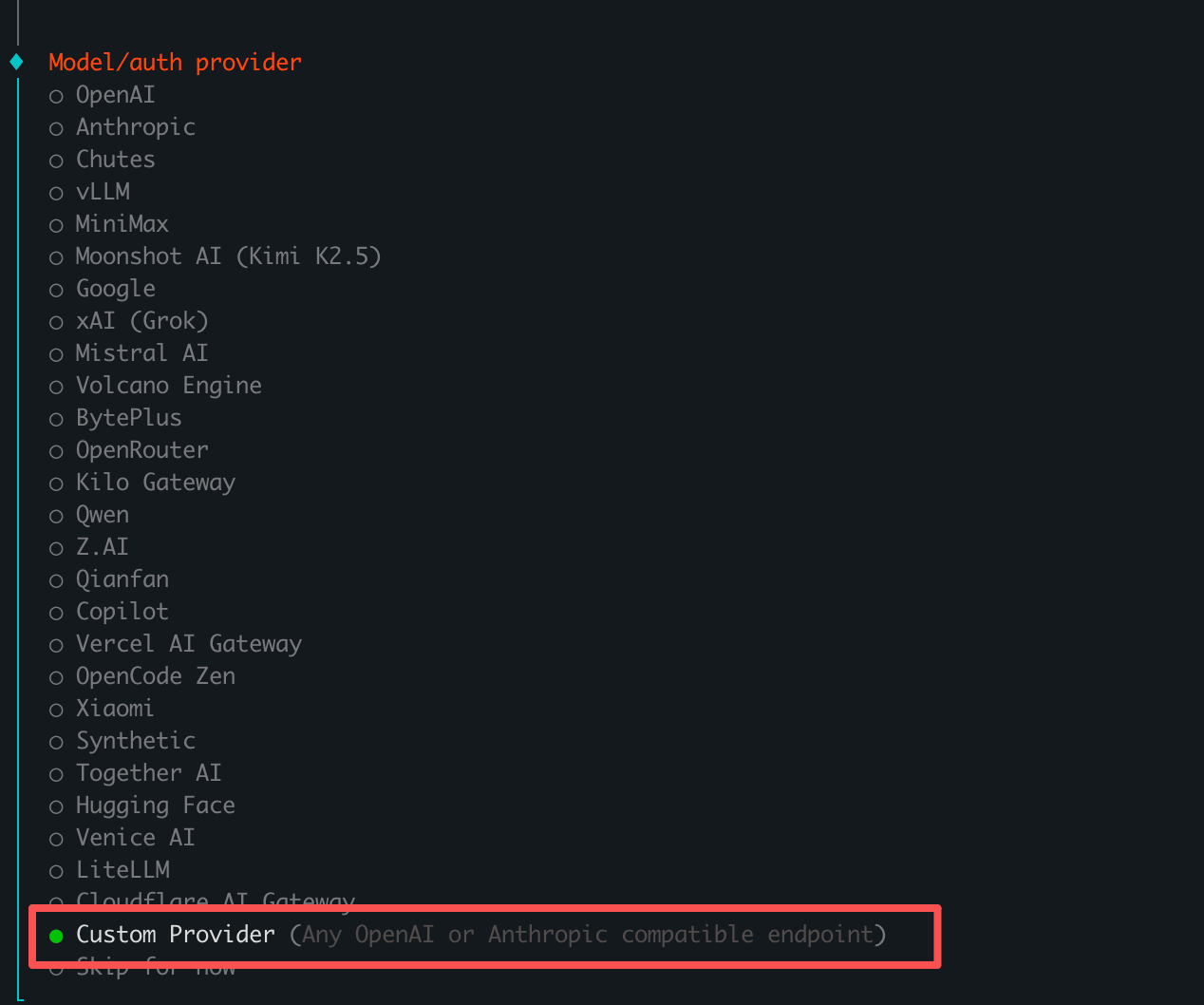 Custom Provider supports any endpoint compatible with OpenAI or Anthropic interfaces. LaoZhang API is fully compatible with the OpenAI API format.
### Step 2: Enter API Base URL
In the **API Base URL** field, enter the LaoZhang API endpoint:
```
http://api2.laozhang.ai/v1
```
Custom Provider supports any endpoint compatible with OpenAI or Anthropic interfaces. LaoZhang API is fully compatible with the OpenAI API format.
### Step 2: Enter API Base URL
In the **API Base URL** field, enter the LaoZhang API endpoint:
```
http://api2.laozhang.ai/v1
```
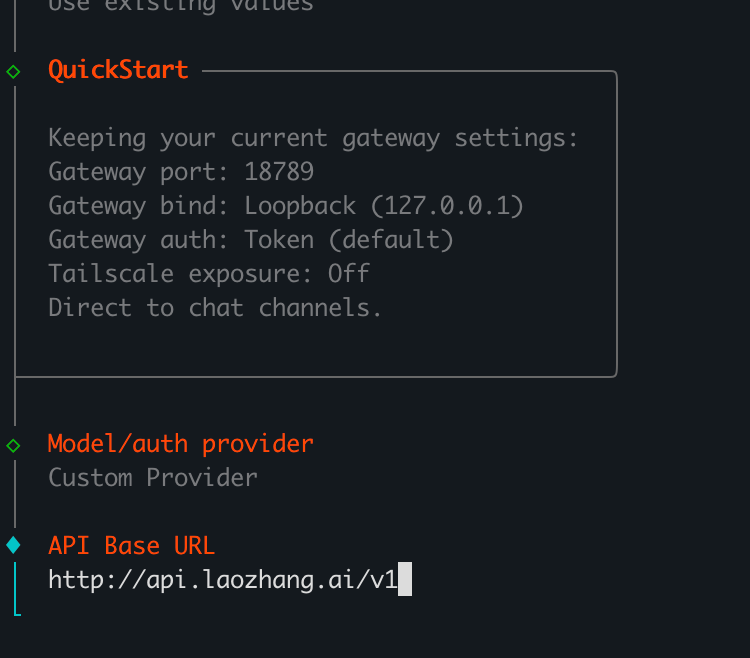 You can also use `https://api2.laozhang.ai/v1`. HTTPS is recommended for better security.
### Step 3: Choose API Key Method
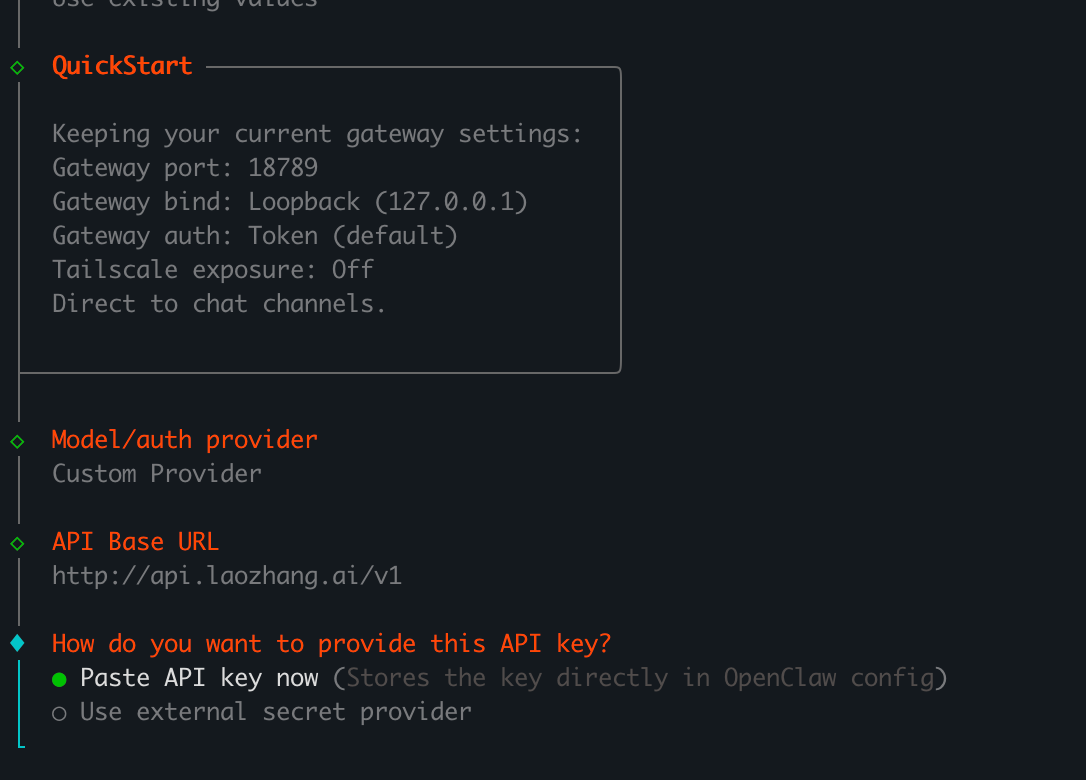
When asked how to provide the API key, select **Paste API key now** to store the key directly in OpenClaw config.
You can also use `https://api2.laozhang.ai/v1`. HTTPS is recommended for better security.
### Step 3: Choose API Key Method
When asked how to provide the API key, select **Paste API key now** to store the key directly in OpenClaw config.
 ### Step 4: Enter API Key
Paste your API key from the LaoZhang API console in the **API Key** field (a string starting with `sk-`).
### Step 4: Enter API Key
Paste your API key from the LaoZhang API console in the **API Key** field (a string starting with `sk-`).
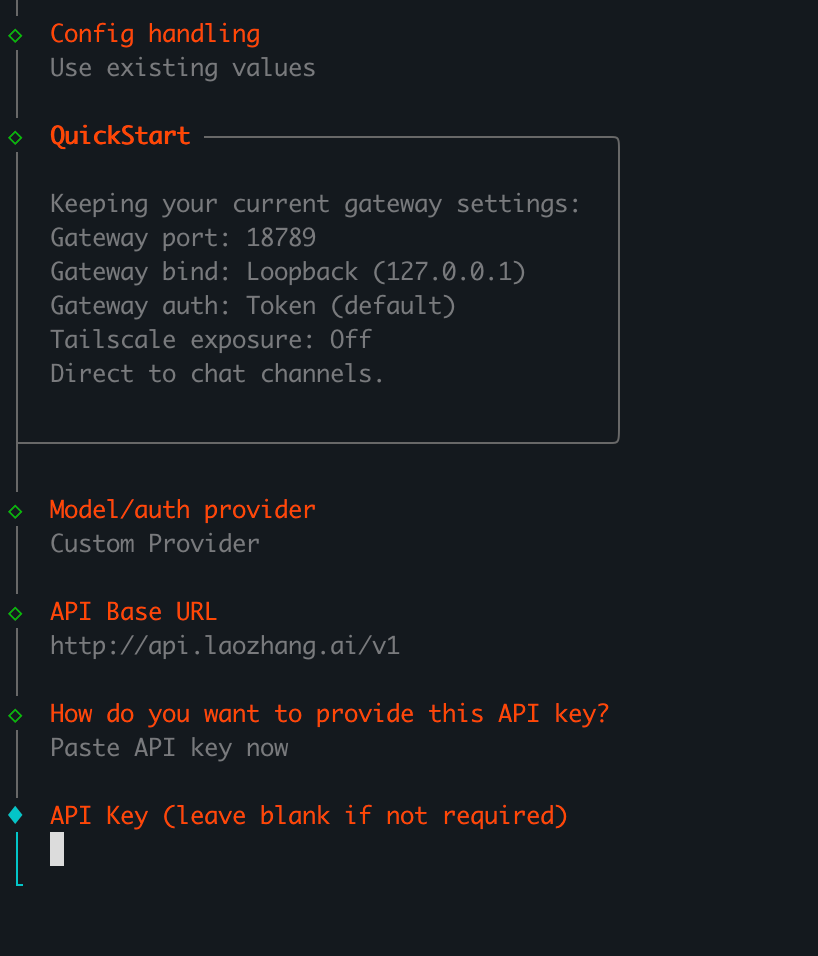 API keys can be created at [LaoZhang API Token Management](https://api2.laozhang.ai/token). When creating a new token, select pay-per-use billing, default group, and keep all other settings as default.
### Step 5: Select Endpoint Compatibility
Under **Endpoint compatibility**, select **OpenAI-compatible (Uses /chat/completions)**.
API keys can be created at [LaoZhang API Token Management](https://api2.laozhang.ai/token). When creating a new token, select pay-per-use billing, default group, and keep all other settings as default.
### Step 5: Select Endpoint Compatibility
Under **Endpoint compatibility**, select **OpenAI-compatible (Uses /chat/completions)**.
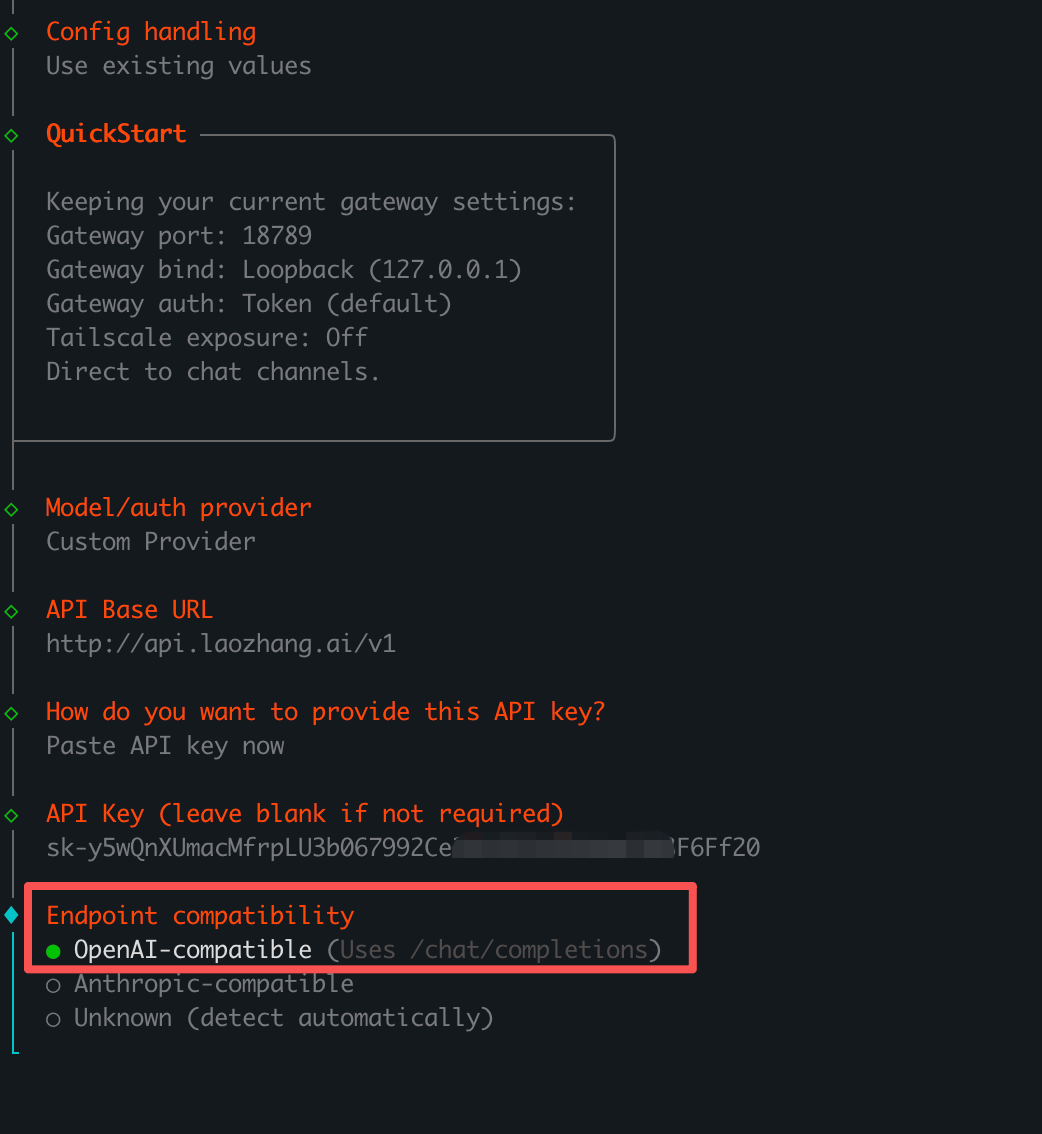 LaoZhang API is fully compatible with OpenAI's `/chat/completions` endpoint. Select this option to proceed.
### Step 6: Set Model ID
Enter the model name you want to use in the **Model ID** field.
LaoZhang API is fully compatible with OpenAI's `/chat/completions` endpoint. Select this option to proceed.
### Step 6: Set Model ID
Enter the model name you want to use in the **Model ID** field.
 ### Step 7: Verify and Complete
OpenClaw will automatically verify the configuration. Once verification succeeds, the system generates an **Endpoint ID** (e.g., `custom-api-laozhang-ai`) and the setup is complete.
### Step 7: Verify and Complete
OpenClaw will automatically verify the configuration. Once verification succeeds, the system generates an **Endpoint ID** (e.g., `custom-api-laozhang-ai`) and the setup is complete.
 Verification may return an error on the first attempt. Simply retry and it should succeed. If verification keeps failing, select **Change model** and try a different Model ID.
## Recommended Models
Through LaoZhang API, you can use the following popular models in OpenClaw:
| Model Series | Model ID | Highlights |
| -------------------------- | ------------------------ | ----------------------------------------------- |
| **GPT-5.5** | `gpt-5.5` | OpenAI's latest flagship model |
| **Claude Opus 4.7** | `claude-opus-4-7` | Anthropic's most capable reasoning model |
| **Claude Sonnet 4.6** | `claude-sonnet-4-6` | Balanced performance and cost |
| **Gemini 3.1 Pro Preview** | `gemini-3.1-pro-preview` | Google's latest Pro preview model |
| **Gemini 3 Flash Preview** | `gemini-3-flash-preview` | Fast response with strong multimodal capability |
| **GPT-4.1 Mini** | `gpt-4.1-mini` | Classic, stable, and fast |
**Model Selection Tips**
* Complex coding tasks: Use `claude-opus-4-7` or `gpt-5.5`
* Daily conversation: Use `gpt-5.5` or `gpt-4.1-mini`
* Multimodal tasks: Use `gemini-3.1-pro-preview`
* Best value: Use `claude-sonnet-4-6`
## Configuration Summary
After completing setup, your OpenClaw key parameters are:
| Setting | Value |
| ---------------------- | ---------------------------- |
| Provider | Custom Provider |
| API Base URL | `http://api2.laozhang.ai/v1` |
| Endpoint Compatibility | OpenAI-compatible |
| Endpoint ID | `custom-api-laozhang-ai` |
## Troubleshooting
### Verification Returns Error
Verification may return an error on the first attempt. Simply retry and it usually succeeds.
### Connection Timeout
* Check your network connection
* Verify the API Base URL is entered correctly
* Try using `https://api2.laozhang.ai/v1`
### Model Call Failures
* Confirm your account has sufficient balance
* Check that the Model ID is spelled correctly
* Review call logs on the [LaoZhang API Log page](https://api2.laozhang.ai/log) for troubleshooting
Need more help? Visit [LaoZhang API Official Website](https://api2.laozhang.ai).
Verification may return an error on the first attempt. Simply retry and it should succeed. If verification keeps failing, select **Change model** and try a different Model ID.
## Recommended Models
Through LaoZhang API, you can use the following popular models in OpenClaw:
| Model Series | Model ID | Highlights |
| -------------------------- | ------------------------ | ----------------------------------------------- |
| **GPT-5.5** | `gpt-5.5` | OpenAI's latest flagship model |
| **Claude Opus 4.7** | `claude-opus-4-7` | Anthropic's most capable reasoning model |
| **Claude Sonnet 4.6** | `claude-sonnet-4-6` | Balanced performance and cost |
| **Gemini 3.1 Pro Preview** | `gemini-3.1-pro-preview` | Google's latest Pro preview model |
| **Gemini 3 Flash Preview** | `gemini-3-flash-preview` | Fast response with strong multimodal capability |
| **GPT-4.1 Mini** | `gpt-4.1-mini` | Classic, stable, and fast |
**Model Selection Tips**
* Complex coding tasks: Use `claude-opus-4-7` or `gpt-5.5`
* Daily conversation: Use `gpt-5.5` or `gpt-4.1-mini`
* Multimodal tasks: Use `gemini-3.1-pro-preview`
* Best value: Use `claude-sonnet-4-6`
## Configuration Summary
After completing setup, your OpenClaw key parameters are:
| Setting | Value |
| ---------------------- | ---------------------------- |
| Provider | Custom Provider |
| API Base URL | `http://api2.laozhang.ai/v1` |
| Endpoint Compatibility | OpenAI-compatible |
| Endpoint ID | `custom-api-laozhang-ai` |
## Troubleshooting
### Verification Returns Error
Verification may return an error on the first attempt. Simply retry and it usually succeeds.
### Connection Timeout
* Check your network connection
* Verify the API Base URL is entered correctly
* Try using `https://api2.laozhang.ai/v1`
### Model Call Failures
* Confirm your account has sufficient balance
* Check that the Model ID is spelled correctly
* Review call logs on the [LaoZhang API Log page](https://api2.laozhang.ai/log) for troubleshooting
Need more help? Visit [LaoZhang API Official Website](https://api2.laozhang.ai).