

What is OpenClaw
OpenClaw is an open-source local AI gateway tool that runs in the terminal, supporting unified access to multiple AI model providers. It has built-in support for mainstream providers like OpenAI, Anthropic, and Google, and also supports connecting any OpenAI or Anthropic compatible third-party endpoint via Custom Provider. By configuring LaoZhang API as a Custom Provider, you can access 200+ AI models in OpenClaw, including GPT-5.5, Claude Opus 4.7, Gemini 3.1 Pro Preview, and more.Prerequisites
- OpenClaw installed (refer to OpenClaw official documentation)
- LaoZhang API account with an API key (visit LaoZhang API Token Management to create a new token — select pay-per-use billing, default group, and keep all other settings as default)
Configuration Steps
Step 1: Select Custom Provider
After launching the OpenClaw configuration wizard, scroll to the bottom of the Model/auth provider list and select Custom Provider (Any OpenAI or Anthropic compatible endpoint).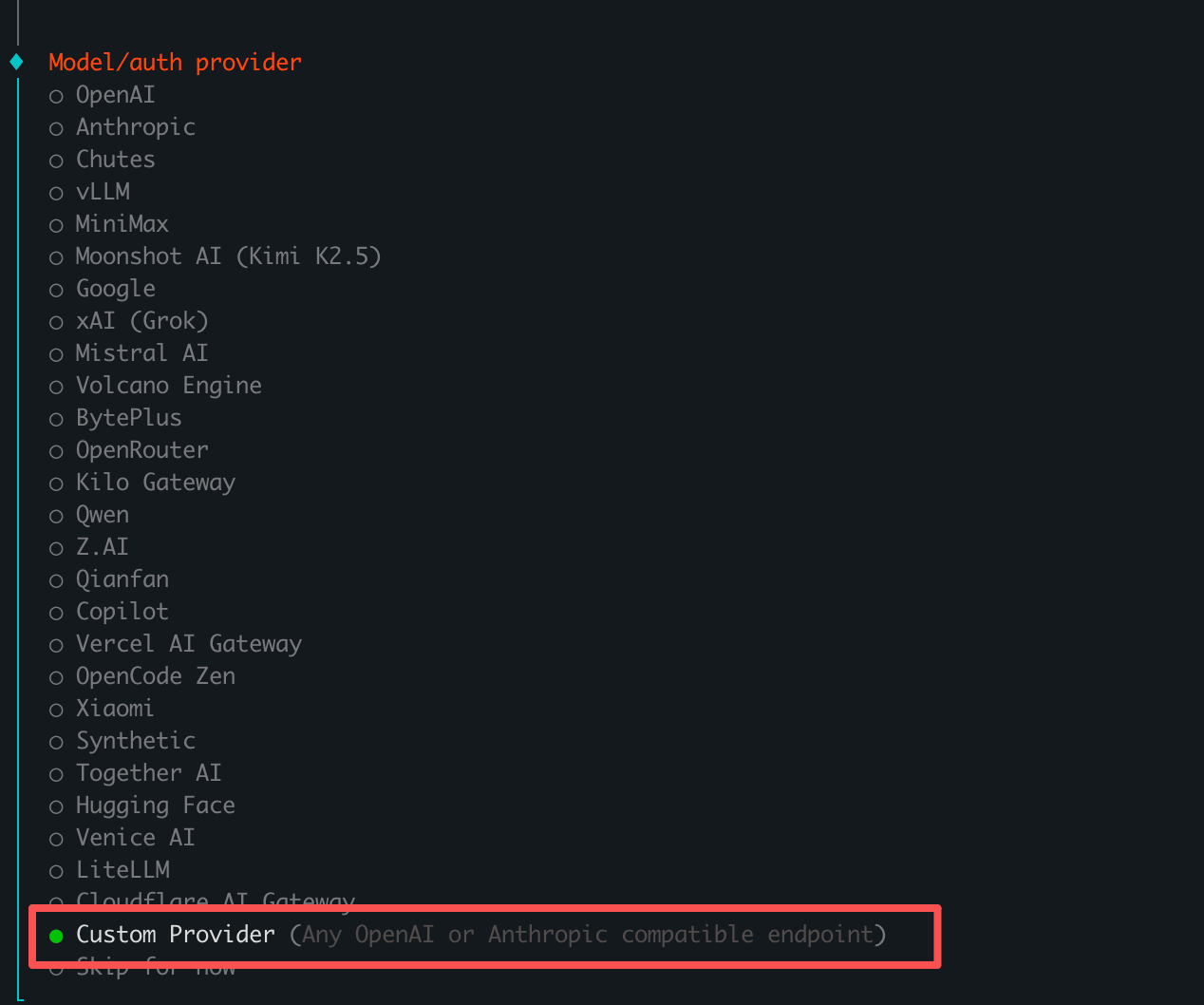
Custom Provider supports any endpoint compatible with OpenAI or Anthropic interfaces. LaoZhang API is fully compatible with the OpenAI API format.
Step 2: Enter API Base URL
In the API Base URL field, enter the LaoZhang API endpoint: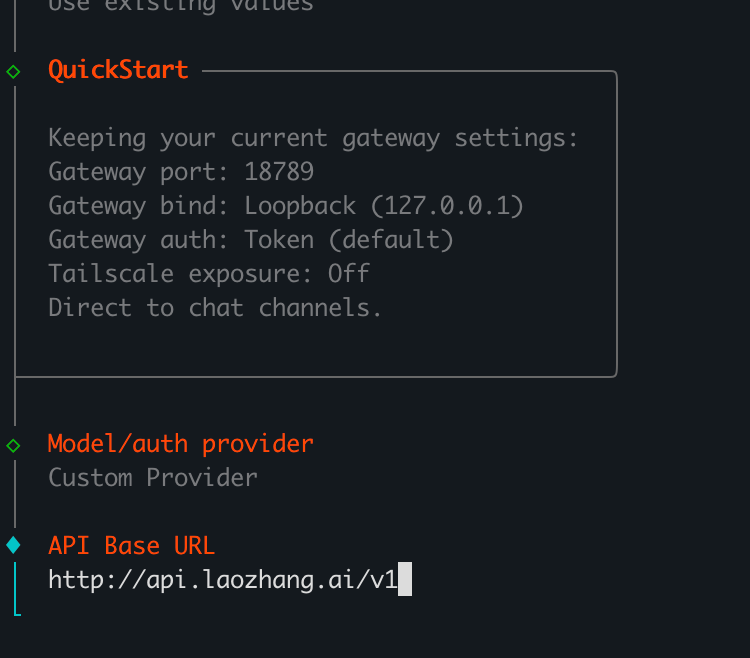
Step 3: Choose API Key Method
When asked how to provide the API key, select Paste API key now to store the key directly in OpenClaw config.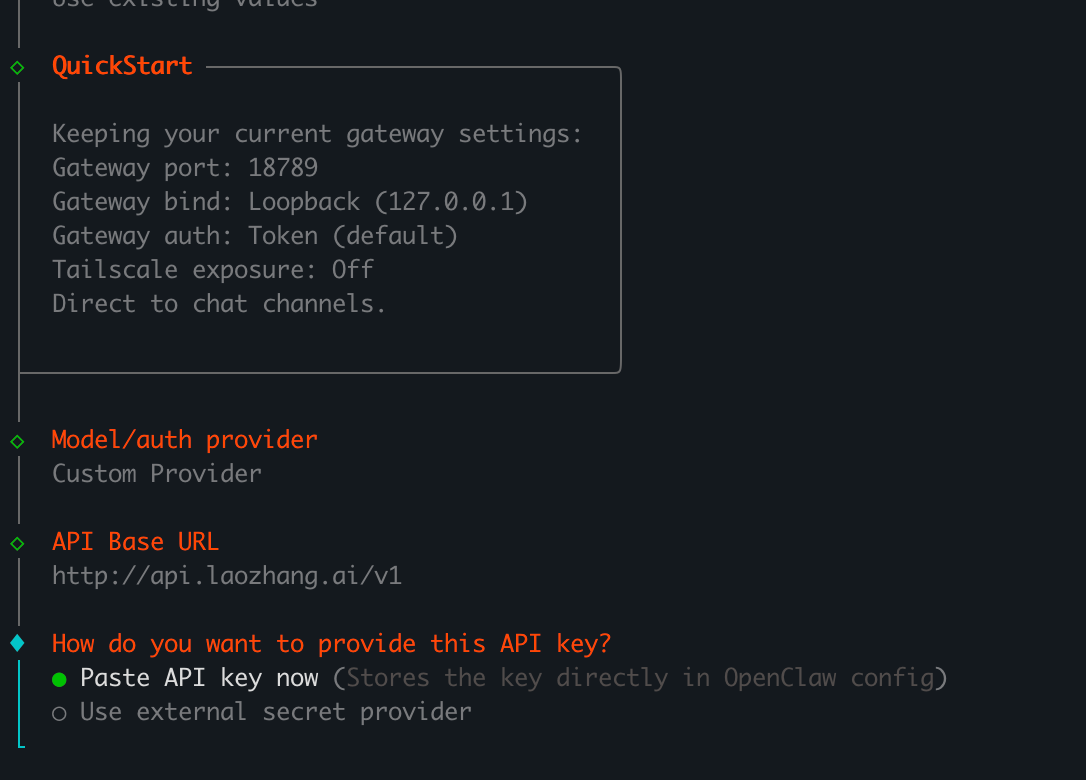
Step 4: Enter API Key
Paste your API key from the LaoZhang API console in the API Key field (a string starting withsk-).
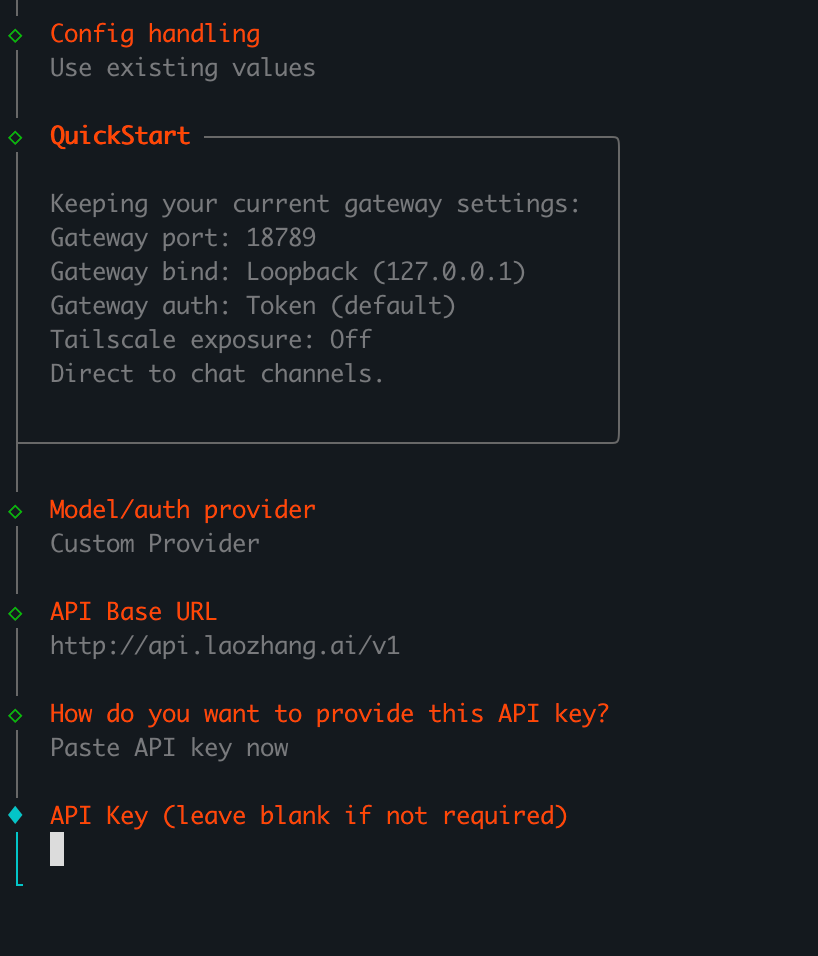
API keys can be created at LaoZhang API Token Management. When creating a new token, select pay-per-use billing, default group, and keep all other settings as default.
Step 5: Select Endpoint Compatibility
Under Endpoint compatibility, select OpenAI-compatible (Uses /chat/completions).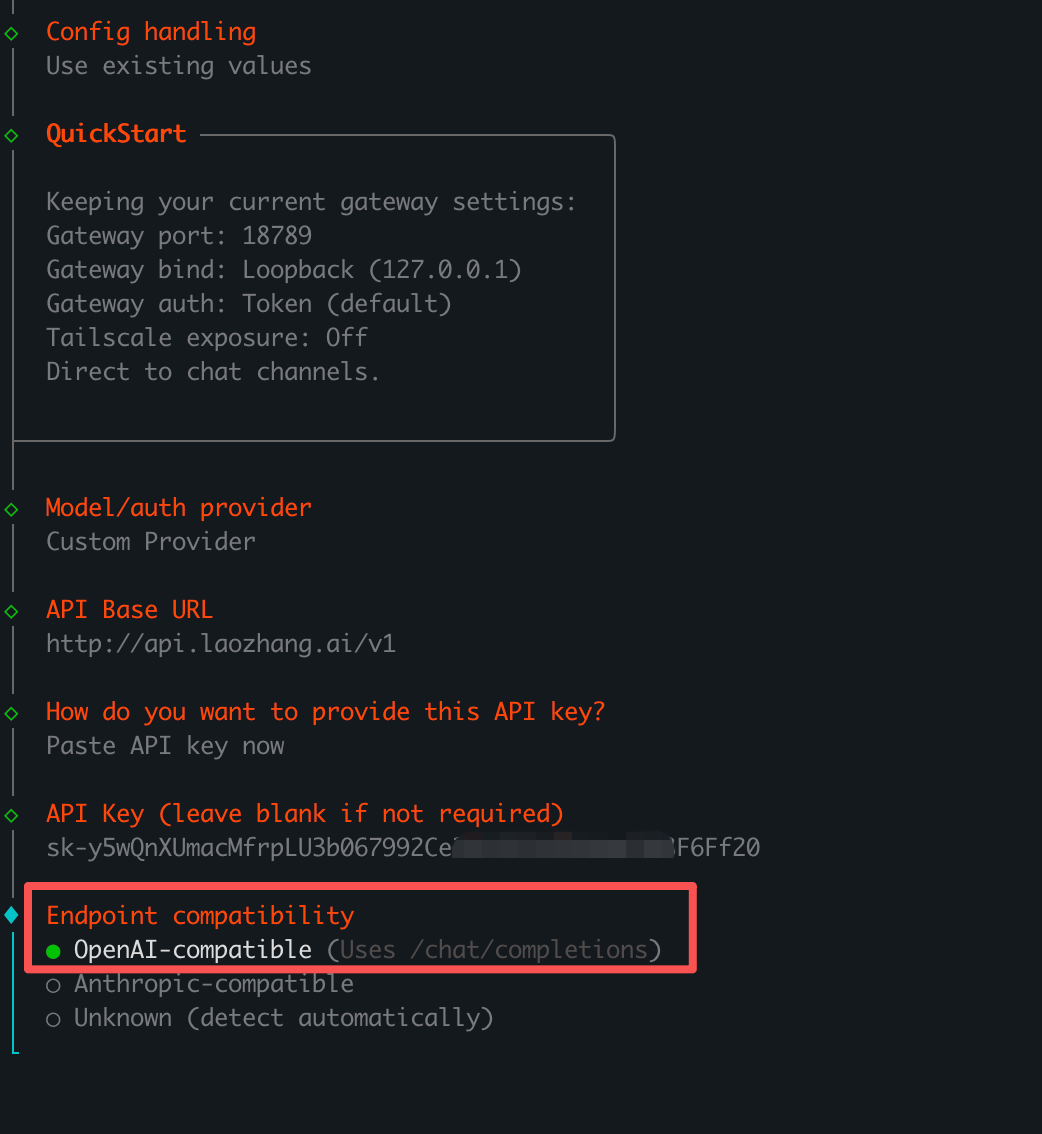
/chat/completions endpoint. Select this option to proceed.
Step 6: Set Model ID
Enter the model name you want to use in the Model ID field.
Step 7: Verify and Complete
OpenClaw will automatically verify the configuration. Once verification succeeds, the system generates an Endpoint ID (e.g.,custom-api-laozhang-ai) and the setup is complete.

Verification may return an error on the first attempt. Simply retry and it should succeed. If verification keeps failing, select Change model and try a different Model ID.
Recommended Models
Through LaoZhang API, you can use the following popular models in OpenClaw:Configuration Summary
After completing setup, your OpenClaw key parameters are:Troubleshooting
Verification Returns Error
Verification may return an error on the first attempt. Simply retry and it usually succeeds.Connection Timeout
- Check your network connection
- Verify the API Base URL is entered correctly
- Try using
https://api2.laozhang.ai/v1
Model Call Failures
- Confirm your account has sufficient balance
- Check that the Model ID is spelled correctly
- Review call logs on the LaoZhang API Log page for troubleshooting